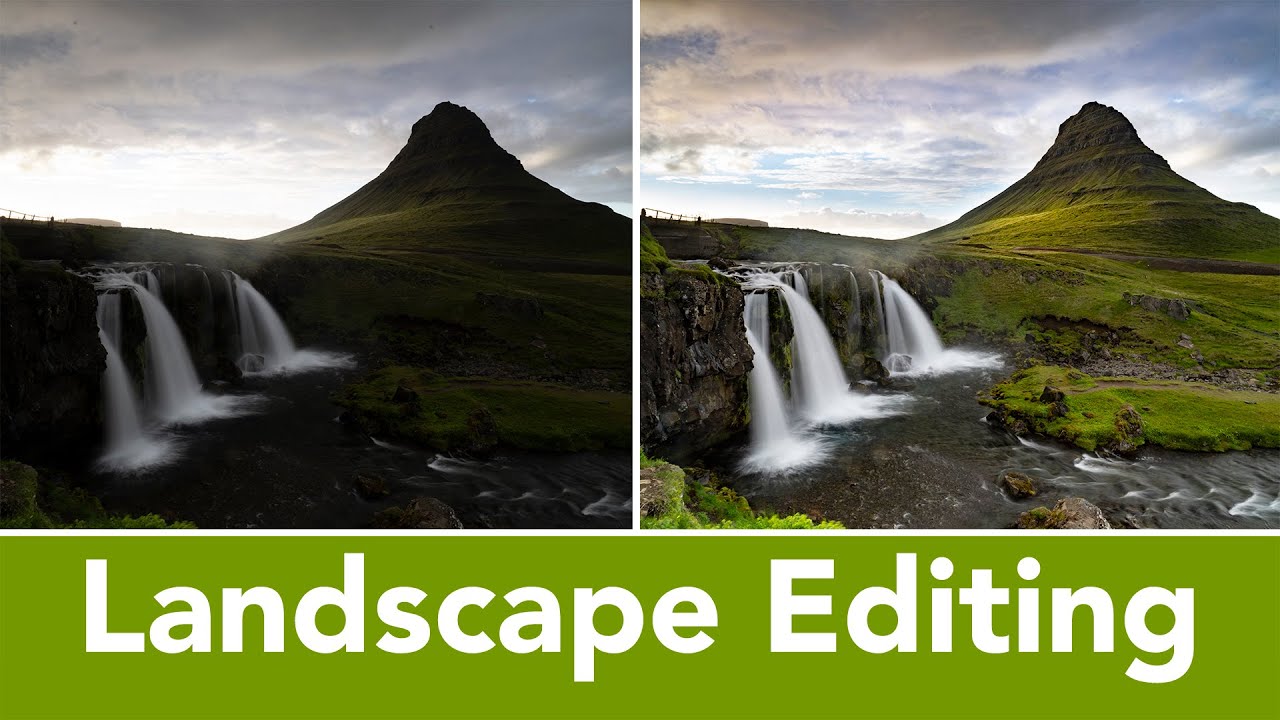
There’s a specific kind of RAW file that sits in every landscape photographer’s catalog. It’s the one that looks nearly unusable on first glance - deeply shadowed, murky in the midtones, shot that way on purpose because the sky was on the edge of blowing out and you had no choice. I have hundreds of them. For years I treated files like that as near-losses, something to fix with a shrug and a heavy hand on the exposure slider. Then I started paying closer attention to how photographers who work in genuinely difficult light actually approach the RAW conversation, and it changed how I handle those frames entirely.
Watch the full tutorial on YouTube
In this The Slanted Lens tutorial, Jay P. Morgan walks through the Camera Raw edit of a landscape shot at Kirkjufellsfoss in Iceland - a waterfall scene captured at the end of a long travel day in flat, uninspiring light. He shot it underexposed by two to three stops intentionally, to protect what little cloud detail existed in an otherwise blown-out sky. The before image looks like something you’d delete. The after image looks like a place you’d drive six hours to visit. What happens between those two states is the actual lesson, and it’s one of the most practical Camera Raw walkthroughs I’ve seen for real-field conditions.
Step 1: Assess the File Before You Touch a Slider
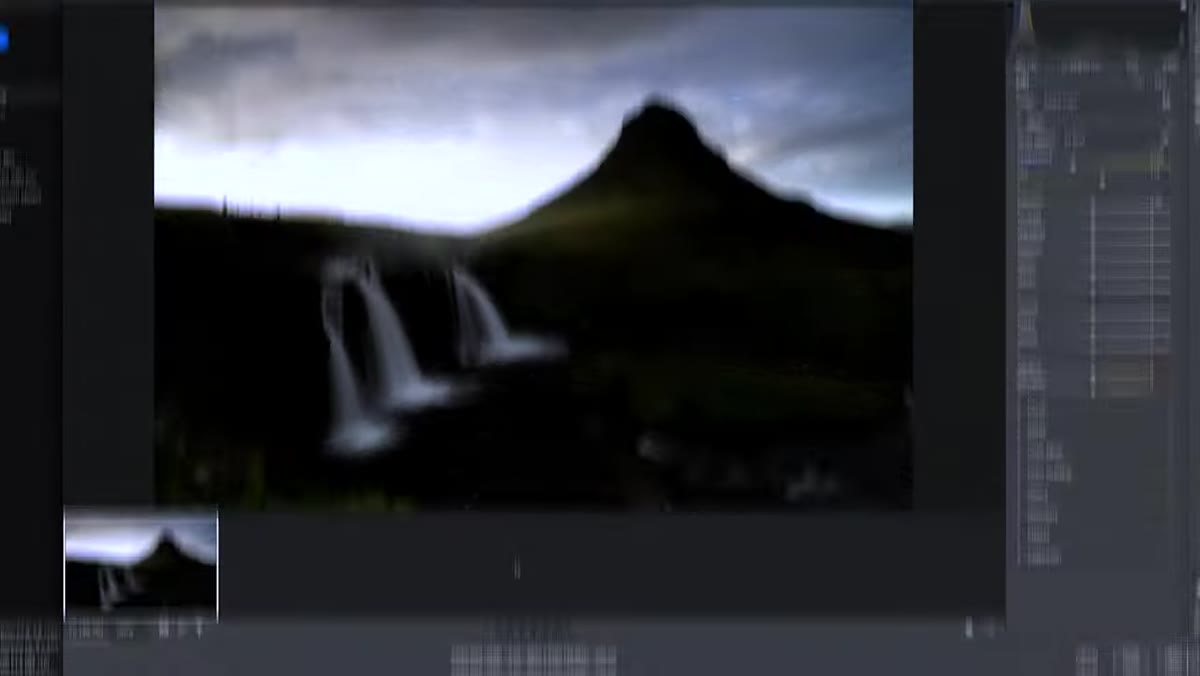 Underexposed landscape RAW file open in Camera Raw
Before reaching for anything, look at what you actually have. Morgan opens the image and resists the urge to immediately push the exposure. The instinct when you see a dark file is to correct it globally right away, but that tends to flatten everything. Instead, take a moment to locate where the recoverable detail lives. In this image, the cloud structure in the upper sky has just enough information to work with, and the shadows in the foreground, though dense, haven’t gone fully to black. That’s the map you’re working from.
Underexposed landscape RAW file open in Camera Raw
Before reaching for anything, look at what you actually have. Morgan opens the image and resists the urge to immediately push the exposure. The instinct when you see a dark file is to correct it globally right away, but that tends to flatten everything. Instead, take a moment to locate where the recoverable detail lives. In this image, the cloud structure in the upper sky has just enough information to work with, and the shadows in the foreground, though dense, haven’t gone fully to black. That’s the map you’re working from.
The key question at this stage is whether the highlights are gone or merely compressed. If your sky is a featureless white, you have nothing to bring back. If it has even faint tonal variation, as Morgan’s does here, Camera Raw can recover it. That distinction should shape every decision that follows.
Step 2: Protect the Highlights First, Then Lift Exposure
 Basic panel sliders with highlights being pulled down in Camera Raw
Counter-intuitively, the first move in a dark file isn’t to add exposure - it’s to pull the highlights down before you brighten anything. Drop the Highlights slider significantly, sometimes as far as -80 or -100, so that when you do raise overall exposure you’re not simultaneously blowing out whatever sky detail you’ve managed to protect in camera. Morgan follows this order deliberately, and it’s the right sequence.
Basic panel sliders with highlights being pulled down in Camera Raw
Counter-intuitively, the first move in a dark file isn’t to add exposure - it’s to pull the highlights down before you brighten anything. Drop the Highlights slider significantly, sometimes as far as -80 or -100, so that when you do raise overall exposure you’re not simultaneously blowing out whatever sky detail you’ve managed to protect in camera. Morgan follows this order deliberately, and it’s the right sequence.
Once highlights are controlled, raise the Exposure slider incrementally and watch the midtones open up. A lift of one to two stops is often enough to reveal the information that was buried. The shadows in the foreground will still look thin at this point, which is exactly where the next step comes in.
Step 3: Open Shadows Without Flattening the Image
 Shadows slider being raised, foreground detail emerging in Camera Raw
Push the Shadows slider up, often quite aggressively, to bring the foreground into a readable range. On a well-exposed RAW file this can look artificial fast, but on a file that was intentionally underexposed to protect highlights, the shadow regions tend to hold genuine information and respond naturally. Morgan’s foreground - the rocky ground around the falls - comes back with real texture once the shadows open.
Shadows slider being raised, foreground detail emerging in Camera Raw
Push the Shadows slider up, often quite aggressively, to bring the foreground into a readable range. On a well-exposed RAW file this can look artificial fast, but on a file that was intentionally underexposed to protect highlights, the shadow regions tend to hold genuine information and respond naturally. Morgan’s foreground - the rocky ground around the falls - comes back with real texture once the shadows open.
The risk here is that lifting shadows too far compresses your tonal range and makes the whole image look gray and lifeless. Watch your blacks. After raising shadows, you may need to drop the Blacks slider a touch to reintroduce depth in the darkest areas and keep the image from going flat.
Step 4: Use Whites and Blacks to Restore Contrast
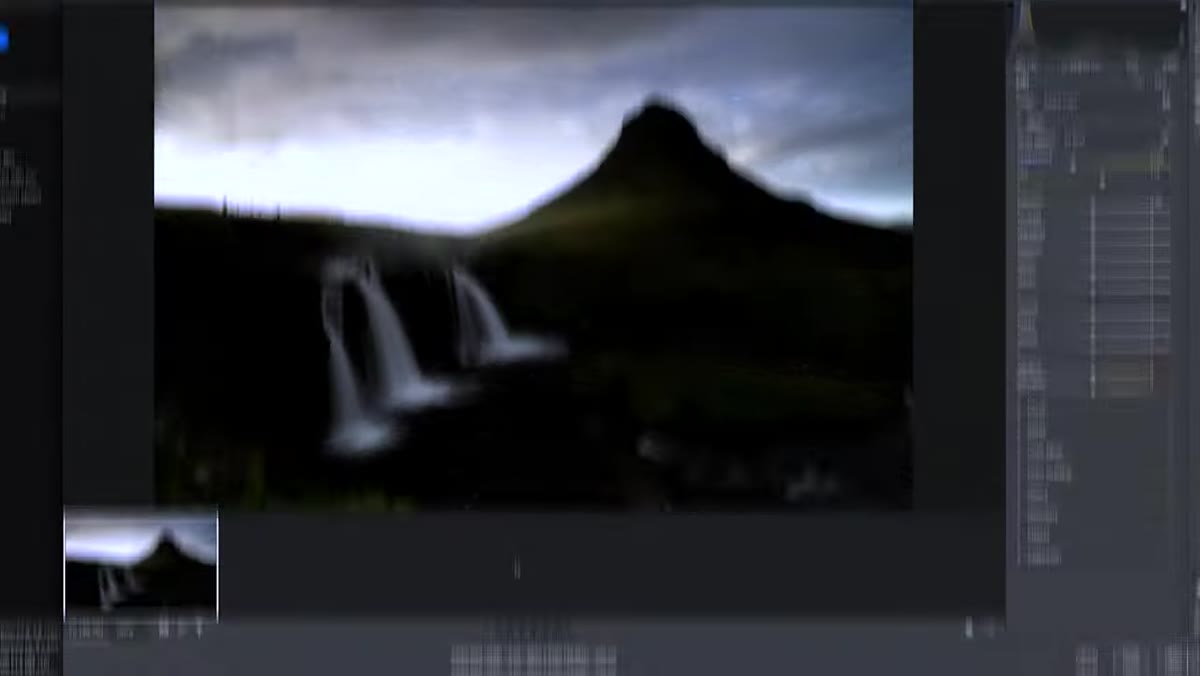 Whites and Blacks sliders being adjusted to rebuild tonal range
After working exposure, highlights, and shadows, the image often needs its tonal endpoints reset. The Whites slider controls your brightest values without touching the highlight detail you’ve just recovered - a small positive push here adds presence to the brightest parts of the sky without blowing them again. Think of it as a brightness ceiling you’re nudging up carefully.
Whites and Blacks sliders being adjusted to rebuild tonal range
After working exposure, highlights, and shadows, the image often needs its tonal endpoints reset. The Whites slider controls your brightest values without touching the highlight detail you’ve just recovered - a small positive push here adds presence to the brightest parts of the sky without blowing them again. Think of it as a brightness ceiling you’re nudging up carefully.
Blacks, as mentioned above, can be pulled down slightly to give the image an anchor. A common mistake is leaving blacks too neutral after a heavy shadow lift. The eye needs something genuinely dark to feel like the image has dimension. Small adjustments here, five to fifteen points in either direction, often make a significant perceptual difference.
Step 5: Adjust Texture, Clarity, and Dehaze to Add Physical Weight
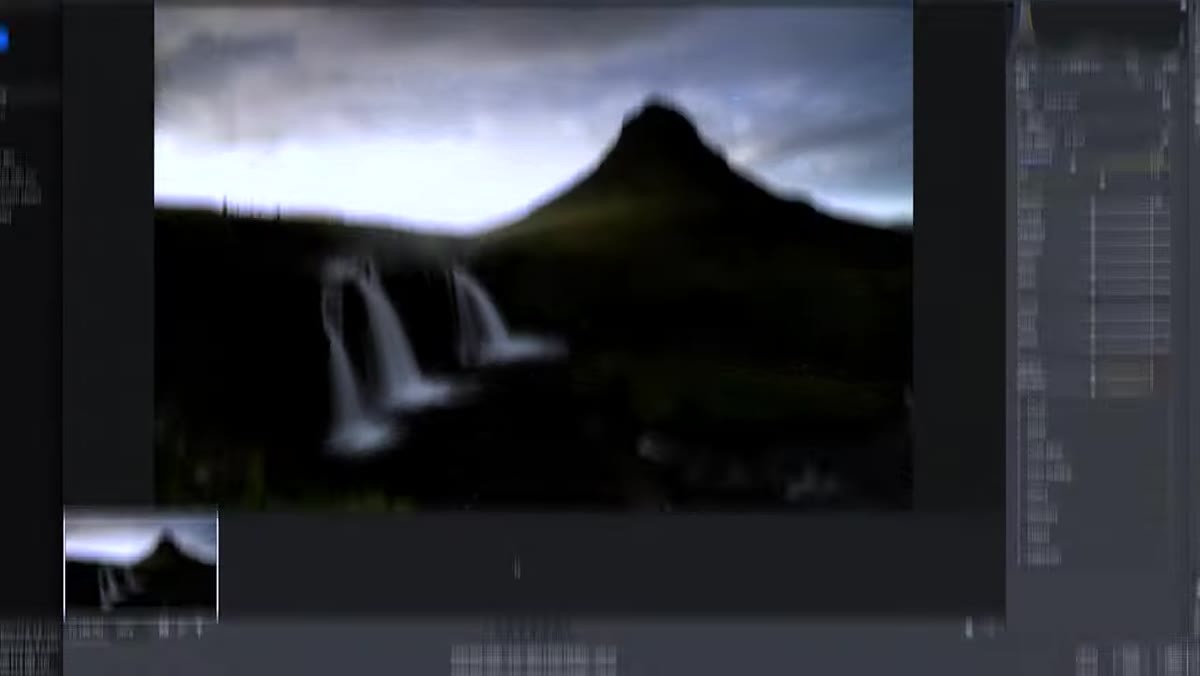 Texture and Clarity sliders being applied to the landscape image
This is where a landscape file starts to feel like a place rather than a photograph of a place. Morgan applies Texture and Clarity to bring out the physical detail in the water, the rock, and the mountain ridgeline. Texture works on mid-frequency detail - the kind that makes a boulder look like it has actual surface - while Clarity increases local contrast in the midtones and gives the whole scene more structure.
Texture and Clarity sliders being applied to the landscape image
This is where a landscape file starts to feel like a place rather than a photograph of a place. Morgan applies Texture and Clarity to bring out the physical detail in the water, the rock, and the mountain ridgeline. Texture works on mid-frequency detail - the kind that makes a boulder look like it has actual surface - while Clarity increases local contrast in the midtones and gives the whole scene more structure.
Dehaze is useful when atmospheric haze or flat light has softened the image overall. A modest Dehaze increase can restore the sense of depth and distance that shooting in overcast conditions tends to rob from a scene. Use it carefully on skies, as it can quickly make clouds look theatrical. Apply it in small increments and evaluate at full view.
Step 6: Finalize Color with White Balance and Saturation
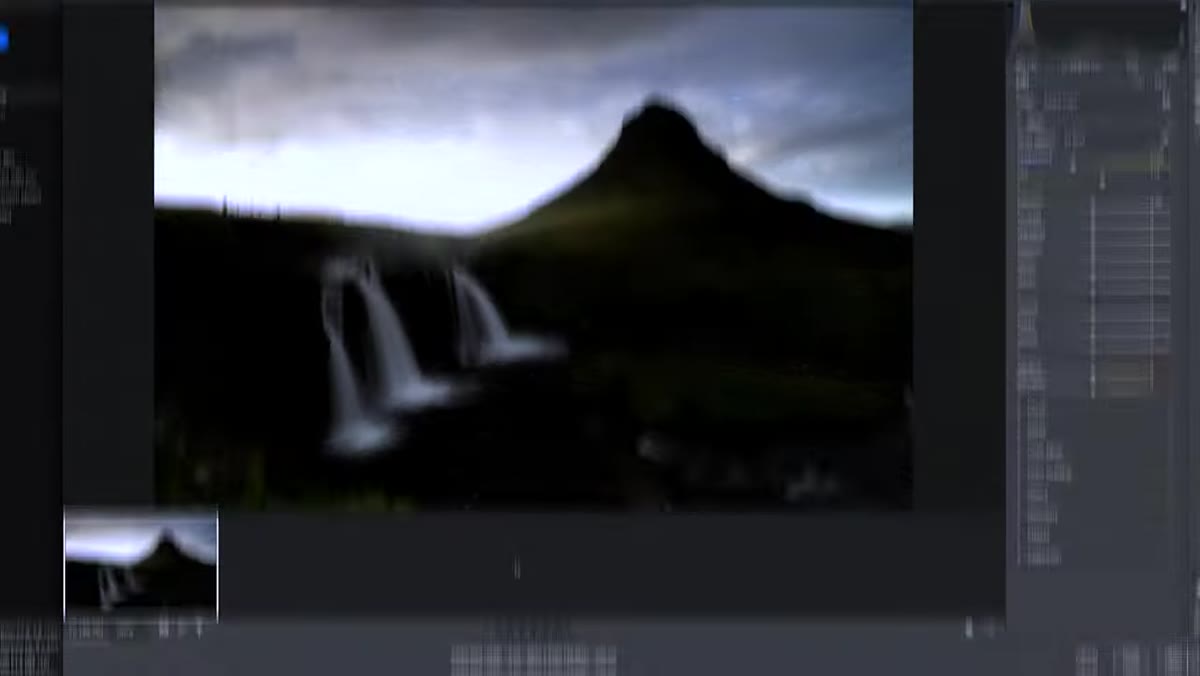 White balance and HSL panel adjustments in Camera Raw
A file this dark often has a color cast that only becomes visible once the exposure is corrected. Check your white balance and be willing to move it. Cooler tones tend to work well in Icelandic scenes - there’s a blue-gray quality to that light that feels true to the place. Warming it too much can make it feel like a postcard of somewhere else entirely.
White balance and HSL panel adjustments in Camera Raw
A file this dark often has a color cast that only becomes visible once the exposure is corrected. Check your white balance and be willing to move it. Cooler tones tend to work well in Icelandic scenes - there’s a blue-gray quality to that light that feels true to the place. Warming it too much can make it feel like a postcard of somewhere else entirely.
In the HSL panel, individual color channels give you control over specific parts of the scene. Pulling the luminance of blues in the sky, or lifting the green in the vegetation, lets you balance the image without a broad saturation push that tends to make everything look oversaturated at once. Be specific about which colors you’re adjusting and why.
A Note from the Field: The Case for Shooting Dark
I’ve started deliberately underexposing in high-contrast scenes more often than I used to, and I’ll be honest - it took trusting the process a few times before it felt natural. Standing at a location with a dark, flat-looking frame on your rear screen goes against everything your instincts are telling you. But the alternative, a correctly exposed midtone with a blown sky, gives you nothing to work with. A modern RAW file shot two stops under can be brought back with care and intention. A clipped highlight cannot.
The mentor who had the most influence on how I shoot used to say that the camera captures possibilities, not finished images. What Camera Raw lets you do - in the right hands, with a properly captured RAW - is make good on those possibilities. Morgan’s walkthrough of this Iceland frame is one of the clearest demonstrations I’ve seen of that principle in practice.
The single most important takeaway from this tutorial is the order of operations: protect your highlights in camera first, then expose for shadows in post. Those are two separate jobs, and treating them that way is what separates a recoverable file from a lost one.
Watch the full tutorial on YouTube to see every slider move demonstrated on the actual Kirkjufellsfoss image - it’s worth watching the full sequence in real time at least once.
Comments
Leave a Comment