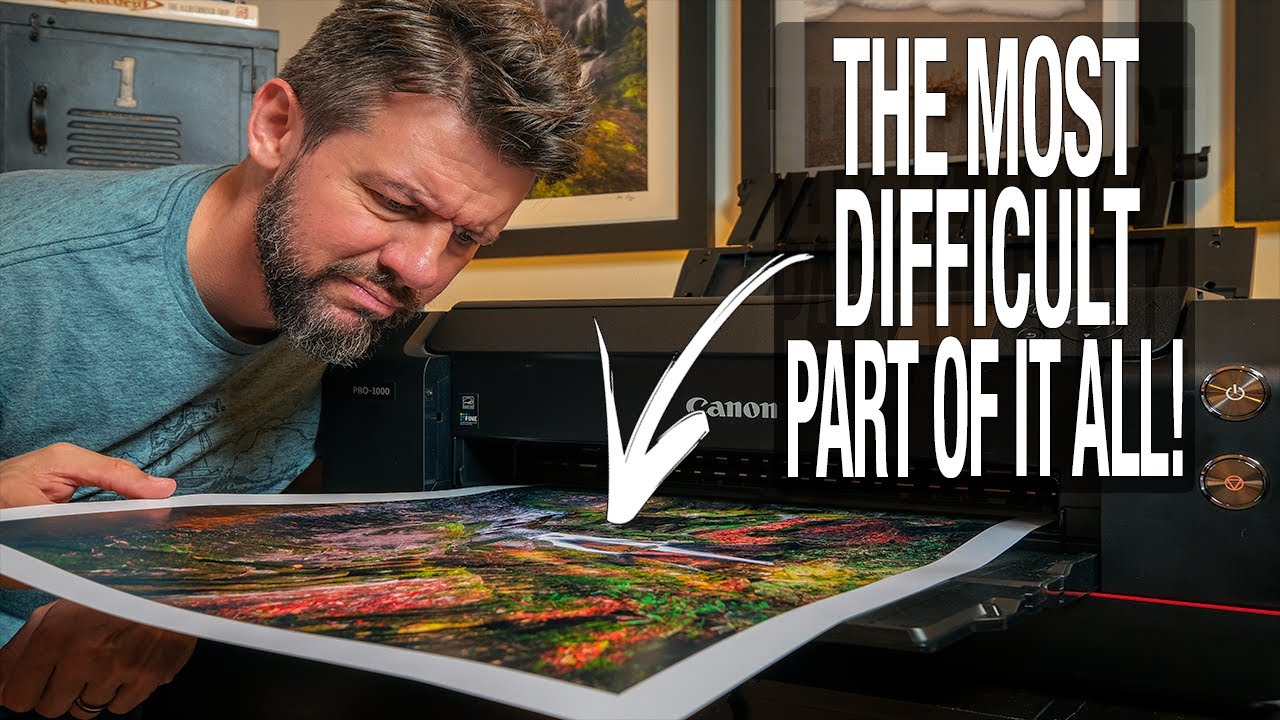
Printing your own landscape work is one of those things that sounds straightforward until you’re standing in front of a $500 printer at midnight, holding a large sheet of paper that looks nothing like what was on your calibrated monitor, wondering where the last two hours went. I’ve been there more than once. After twenty years of selling prints and running workshops out of Bend, Oregon, I still consider printing one of the most humbling parts of this craft. So when I came across Watch the full tutorial on YouTube – Mark Denney’s honest breakdown of his own printing mistakes – I kept nodding along, recognizing every wrong turn he described because I’d made most of them myself.
What makes Mark’s tutorial worth your time is that he’s not selling you a perfect workflow. He’s showing you the exact sequence of errors he made in real order, which is more useful than any idealized step-by-step guide. He shoots with a Fuji GFX100S, and the print quality he’s chasing reflects the kind of detail that only becomes visible when you put ink on paper – and only becomes painful when that process goes wrong. The lessons below apply whether you’re working with a medium format camera or an entry-level mirrorless body. The printing fundamentals don’t change much.
Step 1: Resist the Urge to Print Immediately
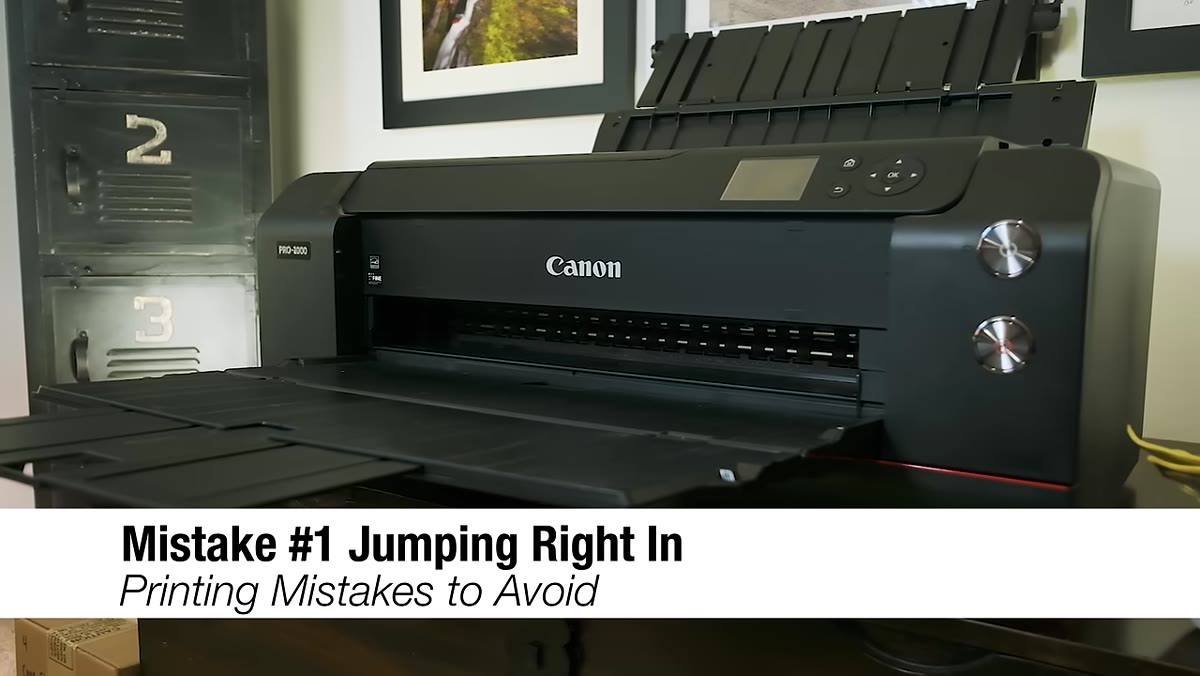
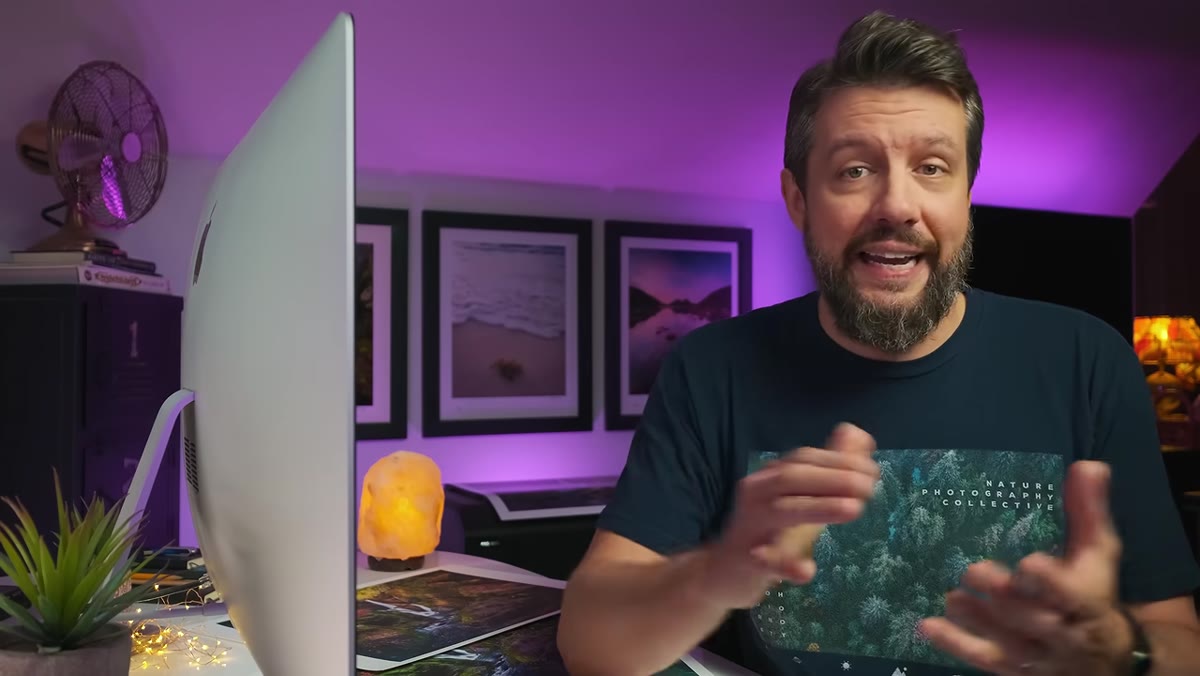 Mark describing his first rushed print attempt after unboxing
The first mistake Mark identifies is what he calls “starting too quickly,” and it’s the one that costs the most in ink, paper, and confidence. He describes unboxing his Canon Pro 1000, loading the cartridges, opening Lightroom, and printing his favorite shot – all in one sitting – only to pull a print that looked nothing like his screen. Sound familiar? That excitement is real, and it will cost you.
Mark describing his first rushed print attempt after unboxing
The first mistake Mark identifies is what he calls “starting too quickly,” and it’s the one that costs the most in ink, paper, and confidence. He describes unboxing his Canon Pro 1000, loading the cartridges, opening Lightroom, and printing his favorite shot – all in one sitting – only to pull a print that looked nothing like his screen. Sound familiar? That excitement is real, and it will cost you.
Before you print a single sheet, you need to understand the full chain of decisions that happen between your monitor and your paper. That means learning about color profiles, paper types, color management settings in your print driver, and how your monitor’s calibration affects what you expect versus what you get. Printing is a system, not a button. Treat your first week with a new printer as research time, not production time.
Step 2: Never Make Large Test Prints
 Multiple small proof prints shown on a single sheet of paper
Mark makes a point here that I wish someone had told me years ago. When he was troubleshooting his early prints, he was printing full-size sheets every time he made an adjustment. He didn’t yet know these were test prints – he thought each one was the final version. Large prints use large amounts of ink and expensive paper. Doing that repeatedly while you’re still dialing in color, sharpness, or exposure corrections is an easy way to spend a lot of money learning very little.
Multiple small proof prints shown on a single sheet of paper
Mark makes a point here that I wish someone had told me years ago. When he was troubleshooting his early prints, he was printing full-size sheets every time he made an adjustment. He didn’t yet know these were test prints – he thought each one was the final version. Large prints use large amounts of ink and expensive paper. Doing that repeatedly while you’re still dialing in color, sharpness, or exposure corrections is an easy way to spend a lot of money learning very little.
The smarter method is to print multiple small versions – five or six different proofs – on a single sheet of paper. You can adjust the crop, tweak the exposure or tone curve, try a different profile, and compare them all side by side before committing to a full print. This is standard practice in professional print workflows, and it applies whether you’re using an 8x10 test sheet or a strip of smaller cuts. The paper and ink savings are real, but more importantly, you’ll make better creative decisions when you can compare options directly.
Step 3: Prepare the Image Before You Open the Print Dialog
 Lightroom interface showing image open before printing
One of the underlying issues Mark describes in his early workflow is that he hadn’t done the image preparation work before printing. He was sending files to the printer that hadn’t been adjusted or evaluated specifically for print output. A photo that looks great on screen – especially a backlit screen – often needs intentional adjustments before it translates well to paper.
Lightroom interface showing image open before printing
One of the underlying issues Mark describes in his early workflow is that he hadn’t done the image preparation work before printing. He was sending files to the printer that hadn’t been adjusted or evaluated specifically for print output. A photo that looks great on screen – especially a backlit screen – often needs intentional adjustments before it translates well to paper.
Print preparation includes checking your sharpening settings for the intended output size, evaluating shadow detail (prints tend to go darker than screens), and making sure your color space and output profile match your paper type. Lightroom’s print module has a soft proofing feature that simulates how your image will look on a specific paper and printer combination. Use it. Spend time in soft proof mode before you ever click print, and you’ll eliminate a large percentage of the surprises that show up on the paper.
Step 4: Match Your Print Settings to Your Paper Profile
 Printer and paper selection interface on screen
This is where a lot of photographers – myself included, early on – make a silent, expensive mistake. When you print, your printer driver needs to know what paper you’re using so it can apply the correct ICC color profile. If you’re using a third-party paper (which many of us do, because the paper selection matters enormously to the final look), you typically need to download the paper manufacturer’s profile for your specific printer model and install it manually.
Printer and paper selection interface on screen
This is where a lot of photographers – myself included, early on – make a silent, expensive mistake. When you print, your printer driver needs to know what paper you’re using so it can apply the correct ICC color profile. If you’re using a third-party paper (which many of us do, because the paper selection matters enormously to the final look), you typically need to download the paper manufacturer’s profile for your specific printer model and install it manually.
Mismatching your paper and profile is one of the most common reasons a print comes out with a color cast, odd saturation, or muddy shadows. The fix is tedious but simple: download the correct ICC profile from your paper supplier’s website, install it in your system, and select it in Lightroom’s print color management settings. Then let Lightroom manage the color, and make sure your printer driver is set to “no color management” so the two systems aren’t fighting each other.
What I’d Add From My Own Experience
Mark’s tutorial focuses on the early mistakes, and he does it well. But there’s one thing I’d stack on top of everything he covers: lighting matters enormously when you evaluate a print.
I’ve pulled prints that looked flat under the fluorescent lights of my office and genuinely beautiful when held under a daylight-balanced light source. If you’re judging your prints under warm tungsten bulbs or cool overhead LEDs, you’re not seeing what you actually printed. Invest in a decent print viewing light – 5000K is the standard for print evaluation – and use it consistently. It changed how I assessed my work, and it stopped me from making “correction” prints that didn’t actually need correcting. The print wasn’t wrong. My viewing conditions were.
The single most important takeaway from Mark’s tutorial is also the simplest one: slow down before you start. Printing rewards preparation and punishes impatience. I learned that the hard way – standing in freezing rivers at dawn to get a shot is the fun kind of hard. Reprinting the same image six times because you skipped the soft proofing step is not. Build your process before you burn through your supplies.
Watch the full tutorial on YouTube – Mark walks through his actual printing process with real examples, including intentional mistake prints he made for the video. Well worth the time before your next print session.
Comments
Leave a Comment