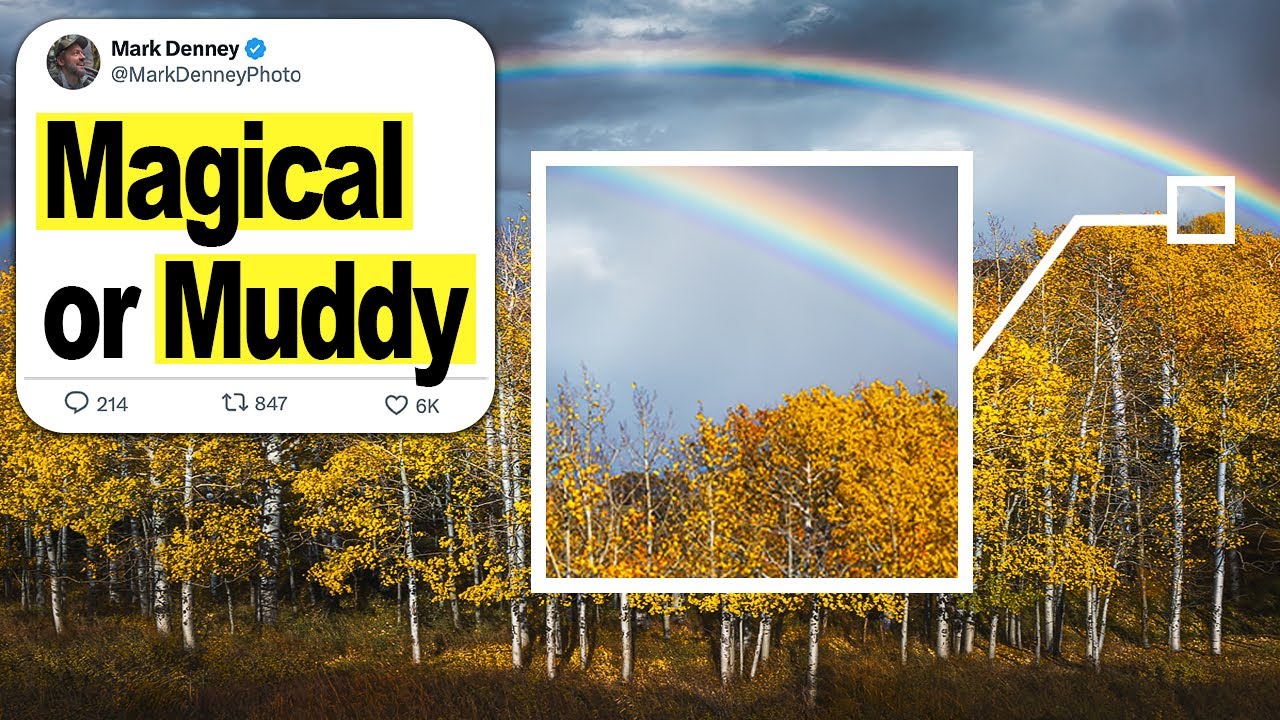
There’s a specific kind of dread I feel when I look at an edit and realize I’ve gone too far. The scene was real, the light was extraordinary, and somewhere between the raw file and the finished image I turned a mountain meadow into something that looks like a greeting card. After twenty years of making landscape photographs, I still do it occasionally with the Orton effect, which is why I kept coming back to this tutorial. In this Mark Denney tutorial on the Orton effect, Denney does something most instructors skip: he explains the technique’s origin and its underlying logic before he touches a single slider. That context changes how you apply it.
The Orton effect is named for photographer Michael Orton, who developed it in the film era by stacking two exposures on a lightbox. One frame was sharp and correctly exposed. The second was intentionally blurred and overexposed. Together they produced a luminous, painterly glow that became his signature. Digital editing made this possible in under two minutes, and that convenience is the exact reason so many photographers wreck their images with it. When something is fast and easy, you stop thinking carefully about whether you actually need it. Denney’s walkthrough fixes that by treating the effect not as a preset you slap on at the end, but as a deliberate atmospheric decision.
I’ve watched a lot of Photoshop tutorials that assume you already know why you’re doing something. This one earns the walkthrough by answering that question first.
Step 1: Open Your Image as a Smart Object in Photoshop
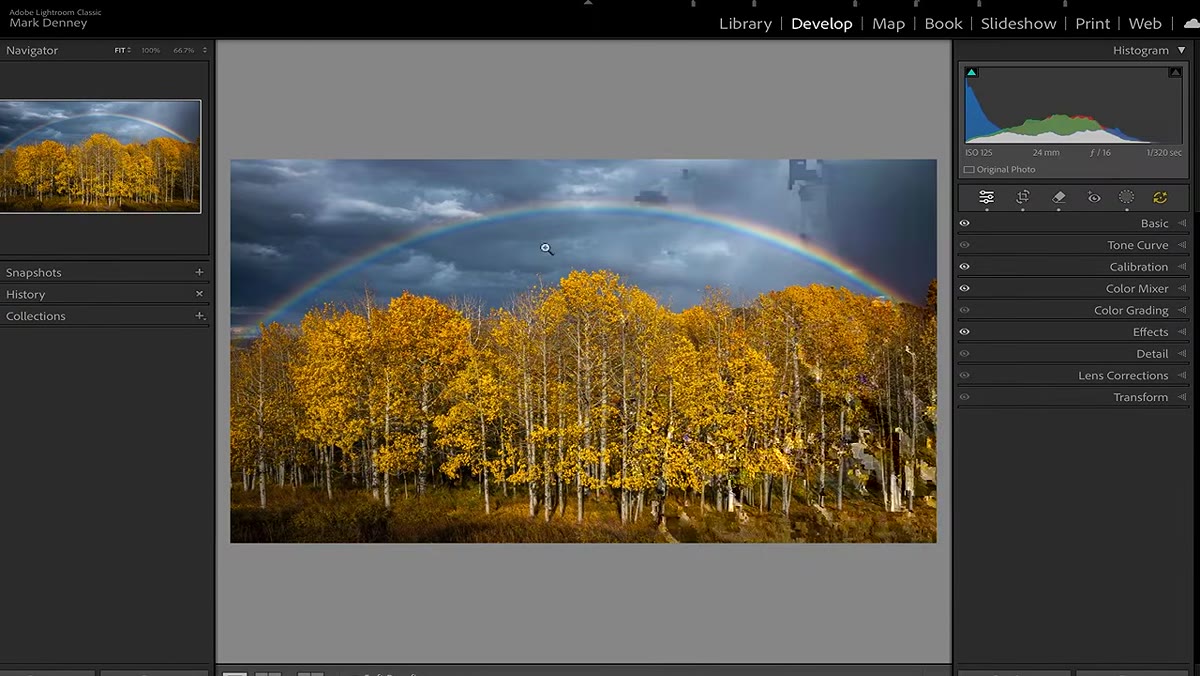 Image opening as a smart object in Photoshop layers panel
Start in Lightroom with your base edit already complete. Exposure, color, and contrast should all be where you want them before you touch the Orton effect, because what you’re about to do sits on top of that foundation. From Lightroom, go to Photo, then Edit In, and choose to open the file as a Smart Object in Photoshop. This is not just a workflow preference. Working with a Smart Object means your original pixel data stays protected throughout the process. Any changes remain non-destructive, which matters when you’re applying an effect this easy to overdo.
Image opening as a smart object in Photoshop layers panel
Start in Lightroom with your base edit already complete. Exposure, color, and contrast should all be where you want them before you touch the Orton effect, because what you’re about to do sits on top of that foundation. From Lightroom, go to Photo, then Edit In, and choose to open the file as a Smart Object in Photoshop. This is not just a workflow preference. Working with a Smart Object means your original pixel data stays protected throughout the process. Any changes remain non-destructive, which matters when you’re applying an effect this easy to overdo.
Step 2: Duplicate the Layer and Label It
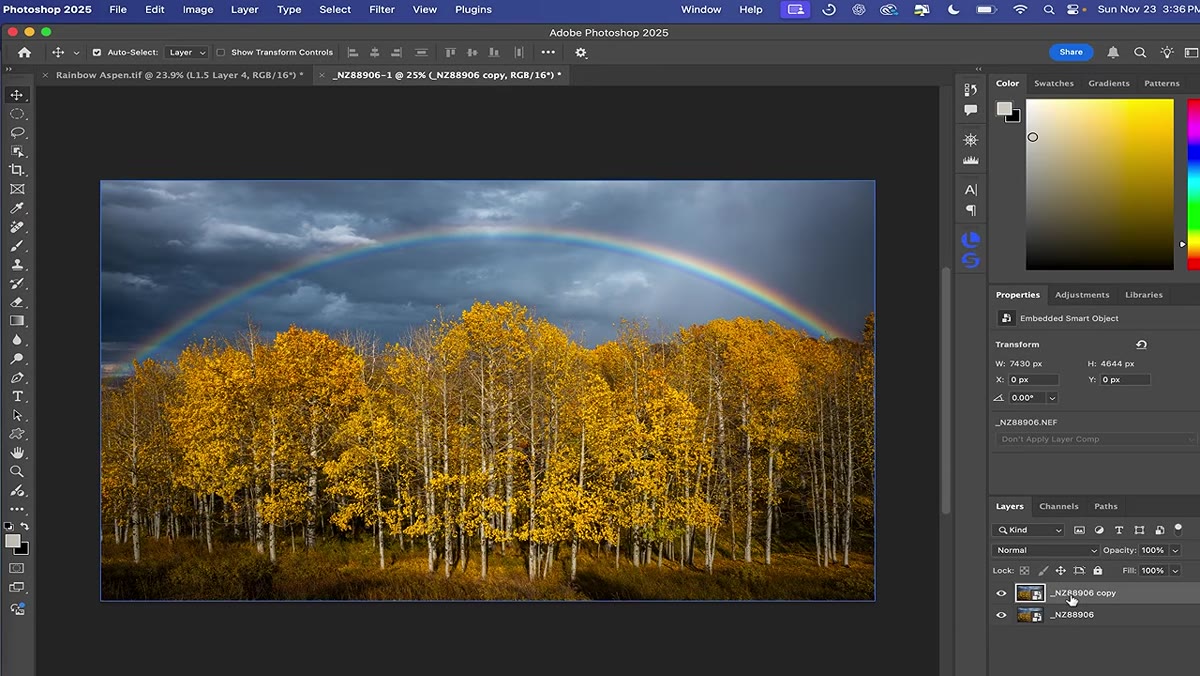 Duplicating base layer, naming it Orton Effect
With your image open in Photoshop, duplicate the base layer using Command J on Mac or Control J on Windows. Immediately rename this new layer something clear, like “Orton Effect.” It sounds like a small thing, but when you’re deep in an edit with six or eight layers, an unlabeled blur layer becomes a mystery you have to solve. This duplicate is what you’ll work on entirely. The base layer below it stays untouched as your reference point and your safety net.
Duplicating base layer, naming it Orton Effect
With your image open in Photoshop, duplicate the base layer using Command J on Mac or Control J on Windows. Immediately rename this new layer something clear, like “Orton Effect.” It sounds like a small thing, but when you’re deep in an edit with six or eight layers, an unlabeled blur layer becomes a mystery you have to solve. This duplicate is what you’ll work on entirely. The base layer below it stays untouched as your reference point and your safety net.
Step 3: Apply a Gaussian Blur
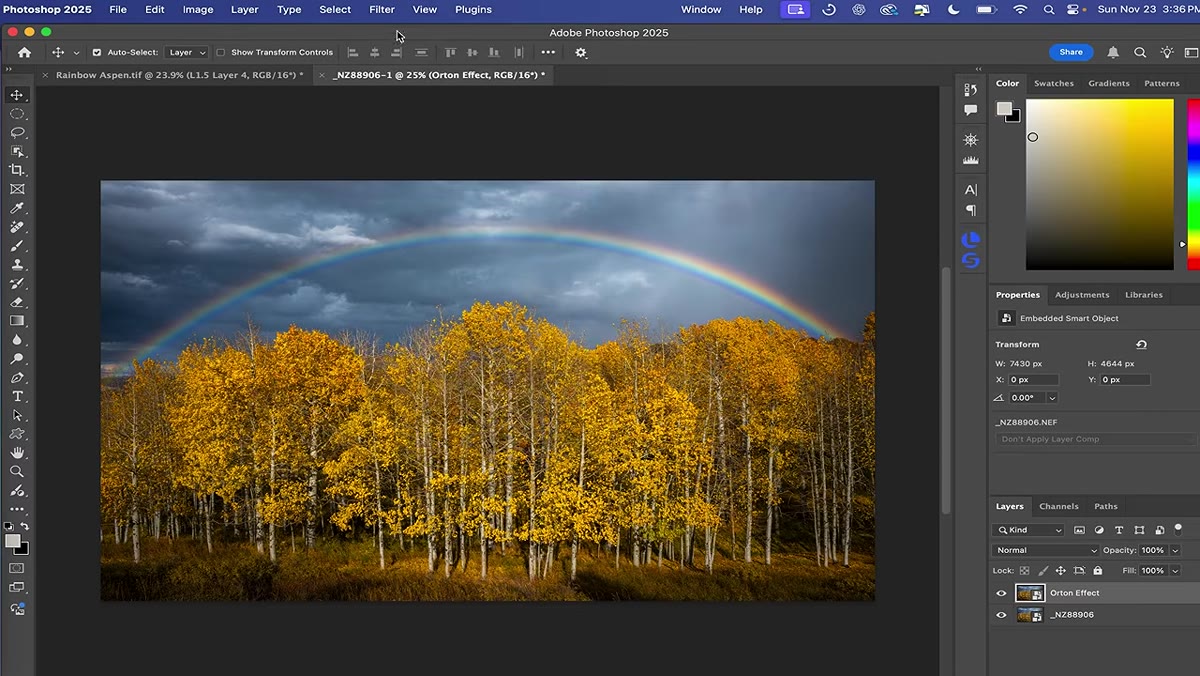 Gaussian Blur dialog box open with radius slider visible
With the duplicate layer selected, go to Filter, then Blur, then Gaussian Blur. A dialog box opens with a single radius slider measured in pixels. This value controls how much of the original detail gets softened. A lower radius keeps more texture visible and produces a subtle haze. A higher radius pushes the effect toward the dreamy, soft-focus look that defines the classic Orton style at its most visible. Denney demonstrates the difference clearly, and the takeaway is that this number needs to match your image’s content. A scene with fine foreground texture, like a field of grass or detailed rock faces, calls for restraint. A misty valley or a sky heavy with clouds can handle a more aggressive blur. Start at around 20 pixels and adjust from there rather than chasing a fixed number.
Gaussian Blur dialog box open with radius slider visible
With the duplicate layer selected, go to Filter, then Blur, then Gaussian Blur. A dialog box opens with a single radius slider measured in pixels. This value controls how much of the original detail gets softened. A lower radius keeps more texture visible and produces a subtle haze. A higher radius pushes the effect toward the dreamy, soft-focus look that defines the classic Orton style at its most visible. Denney demonstrates the difference clearly, and the takeaway is that this number needs to match your image’s content. A scene with fine foreground texture, like a field of grass or detailed rock faces, calls for restraint. A misty valley or a sky heavy with clouds can handle a more aggressive blur. Start at around 20 pixels and adjust from there rather than chasing a fixed number.
Step 4: Change the Blend Mode to Screen or Multiply
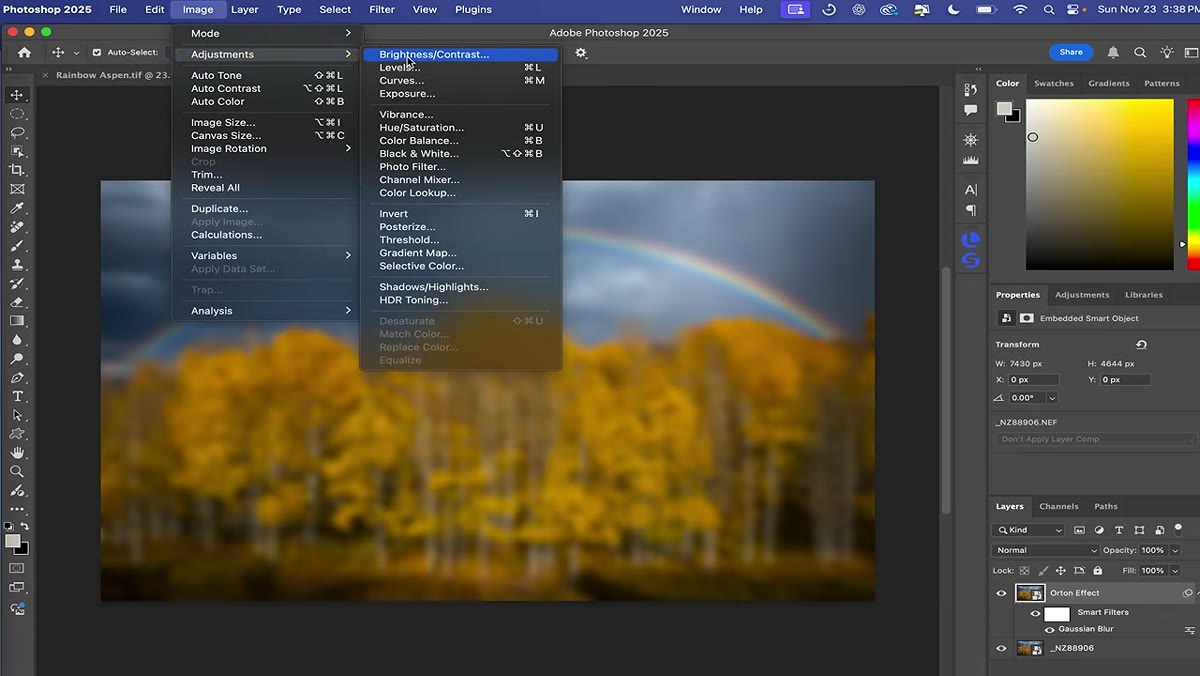 Blend mode dropdown showing Screen selected on duplicate layer
Here is where the actual Orton magic happens, and it’s also where most photographers make their first mistake. Change the blending mode of your blurred duplicate layer from Normal to Screen. This is what creates the luminous, overexposed quality that Orton achieved on film. The Screen mode brightens the image by revealing the light values from both layers simultaneously, which is why the effect produces that characteristic glow rather than just a blur. At this point the effect will likely feel too strong. That’s expected. The next step is where you dial it back to something that feels natural.
Blend mode dropdown showing Screen selected on duplicate layer
Here is where the actual Orton magic happens, and it’s also where most photographers make their first mistake. Change the blending mode of your blurred duplicate layer from Normal to Screen. This is what creates the luminous, overexposed quality that Orton achieved on film. The Screen mode brightens the image by revealing the light values from both layers simultaneously, which is why the effect produces that characteristic glow rather than just a blur. At this point the effect will likely feel too strong. That’s expected. The next step is where you dial it back to something that feels natural.
Step 5: Reduce the Layer Opacity
 Opacity slider being pulled down on the Orton Effect layer
Drop the opacity of your blurred Screen layer until the effect disappears into the image rather than sitting on top of it. There is no universal percentage here. Denney works somewhere in the 20 to 40 percent range for most images, and that tracks with my own experience. The goal is that a viewer shouldn’t immediately identify the Orton effect as a technique. They should simply feel that the image has warmth and atmosphere. If someone looks at your photograph and their first thought is “nice Orton effect,” you’ve pushed it too far. Reduce opacity until the question disappears.
Opacity slider being pulled down on the Orton Effect layer
Drop the opacity of your blurred Screen layer until the effect disappears into the image rather than sitting on top of it. There is no universal percentage here. Denney works somewhere in the 20 to 40 percent range for most images, and that tracks with my own experience. The goal is that a viewer shouldn’t immediately identify the Orton effect as a technique. They should simply feel that the image has warmth and atmosphere. If someone looks at your photograph and their first thought is “nice Orton effect,” you’ve pushed it too far. Reduce opacity until the question disappears.
Step 6: Apply a Layer Mask to Protect Sharp Areas
 Layer mask added to Orton layer, brush painting over foreground details
Add a layer mask to the Orton effect layer by clicking the mask icon at the bottom of the Layers panel. Select a soft black brush and paint over any areas where you want to preserve crisp detail. Foreground elements are almost always the priority here, particularly anything with fine texture that your eye naturally moves toward: rocks, foliage, water surfaces, a fence line. The Orton effect belongs in backgrounds and midgrounds where atmospheric depth lives. Letting it bleed into your foreground anchor points is usually what produces that washed-out, unreal quality that makes an image feel wrong without viewers being able to explain why.
Layer mask added to Orton layer, brush painting over foreground details
Add a layer mask to the Orton effect layer by clicking the mask icon at the bottom of the Layers panel. Select a soft black brush and paint over any areas where you want to preserve crisp detail. Foreground elements are almost always the priority here, particularly anything with fine texture that your eye naturally moves toward: rocks, foliage, water surfaces, a fence line. The Orton effect belongs in backgrounds and midgrounds where atmospheric depth lives. Letting it bleed into your foreground anchor points is usually what produces that washed-out, unreal quality that makes an image feel wrong without viewers being able to explain why.
What I’ve Learned Applying This in the Field
The single most useful adjustment I’ve added to this workflow is to link the strength of the effect to the existing light conditions in the scene. On mornings when the light was already soft and diffused, I pull the opacity down aggressively, sometimes below 15 percent. The atmosphere is already there. The Orton effect should only deepen what exists, not manufacture something the scene never had. On high-contrast midday shots, the effect rarely belongs at all.
I still occasionally shoot film specifically because it forces me to commit before pressing the shutter. The Orton effect in digital editing is the opposite of that discipline. It’s fast, reversible, and easy to nudge upward one more click. The photographers who use it well are the ones who treat it like a choice they’re making rather than a default they’re applying. Denney’s tutorial is worth watching for exactly that reason. It reframes the technique as something that requires intention, and that shift in thinking matters more than any specific pixel value.
The most important thing this tutorial teaches isn’t a setting. It’s that every effect you apply should serve the atmosphere that was actually present when you made the photograph. Apply it to amplify. Never apply it to invent.
Watch the full tutorial on YouTube to see Denney walk through the full before-and-after comparison and demonstrate the effect on his Colorado aspen grove image.
Comments
Leave a Comment