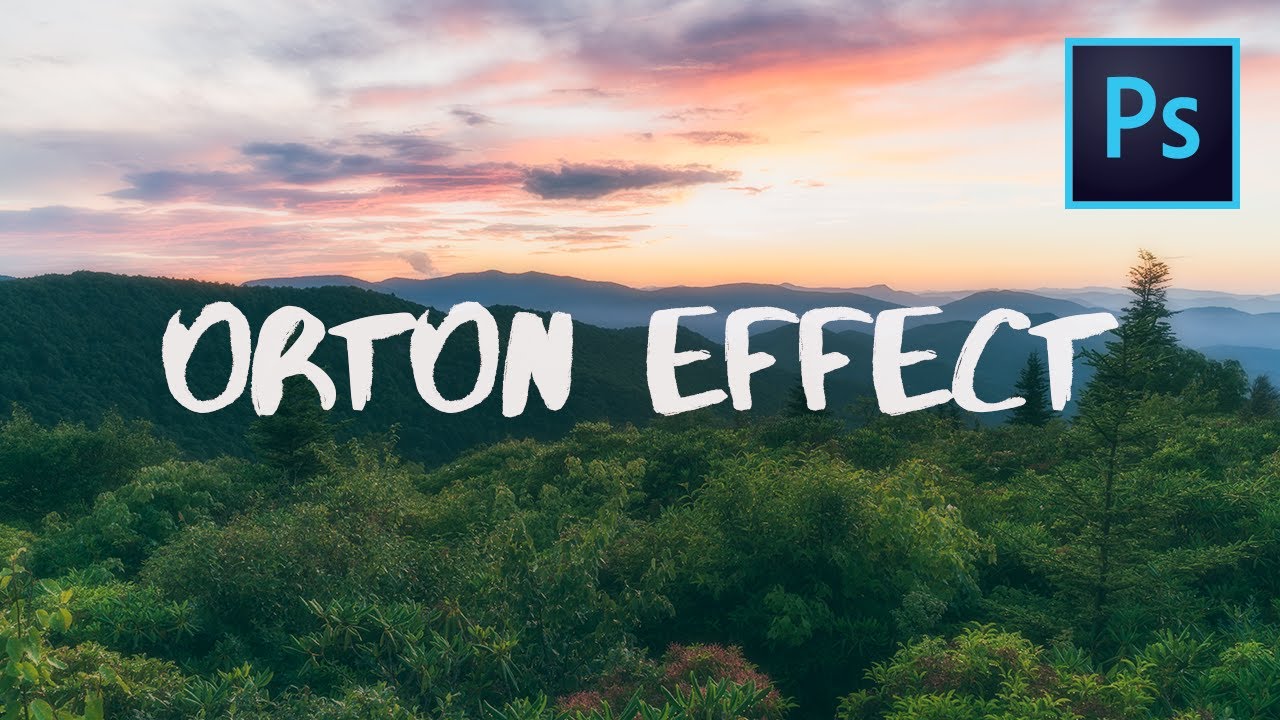
There are edits I reach for on almost every landscape image I process, and then there are the quiet ones I almost never talk about. The Orton effect falls into that second category. I’ve been applying some version of it for years, mostly to images where the light has that particular quality I can’t quite describe in words but absolutely recognize when I’m standing in it at 5am outside Bend. It softens things in a way that feels less like a filter and more like a memory. The challenge has always been explaining exactly how to do it in a way that doesn’t sound like a chemistry experiment.
Watch the full tutorial on YouTube
In this Mark Denney tutorial on the Orton effect, he walks through a clean, repeatable Photoshop workflow that I think is genuinely one of the more practical breakdowns of this technique I’ve seen. Mark’s approach keeps the effect subtle and controllable, which is exactly where it needs to live. Too heavy and you’ve made a dreamy disaster. Too light and you might wonder why you bothered. What follows is my own walkthrough of the technique as he demonstrates it, with notes from my own experience layered in where they feel useful.
Step 1: Understand What You’re Actually Recreating
 Historical explanation of Michael Orton’s original film technique
Before touching a single slider, it’s worth knowing where this technique came from. In the mid-1980s, photographer Michael Orton developed a method of sandwiching two film exposures together. The first exposure was sharp and correctly exposed. The second was deliberately thrown out of focus and overexposed. When merged, the result was an image that looked almost like a watercolor painting, with highlights bleeding softly into shadows and shadows kissing the edges of brighter tones. That bleed is the whole point. It’s not about blur for blur’s sake. It’s about creating a sense of luminosity and atmosphere that purely sharp images sometimes lack. Knowing that intent shapes how you apply every step that follows.
Historical explanation of Michael Orton’s original film technique
Before touching a single slider, it’s worth knowing where this technique came from. In the mid-1980s, photographer Michael Orton developed a method of sandwiching two film exposures together. The first exposure was sharp and correctly exposed. The second was deliberately thrown out of focus and overexposed. When merged, the result was an image that looked almost like a watercolor painting, with highlights bleeding softly into shadows and shadows kissing the edges of brighter tones. That bleed is the whole point. It’s not about blur for blur’s sake. It’s about creating a sense of luminosity and atmosphere that purely sharp images sometimes lack. Knowing that intent shapes how you apply every step that follows.
Step 2: Start With a Fully Processed, Sharp Image
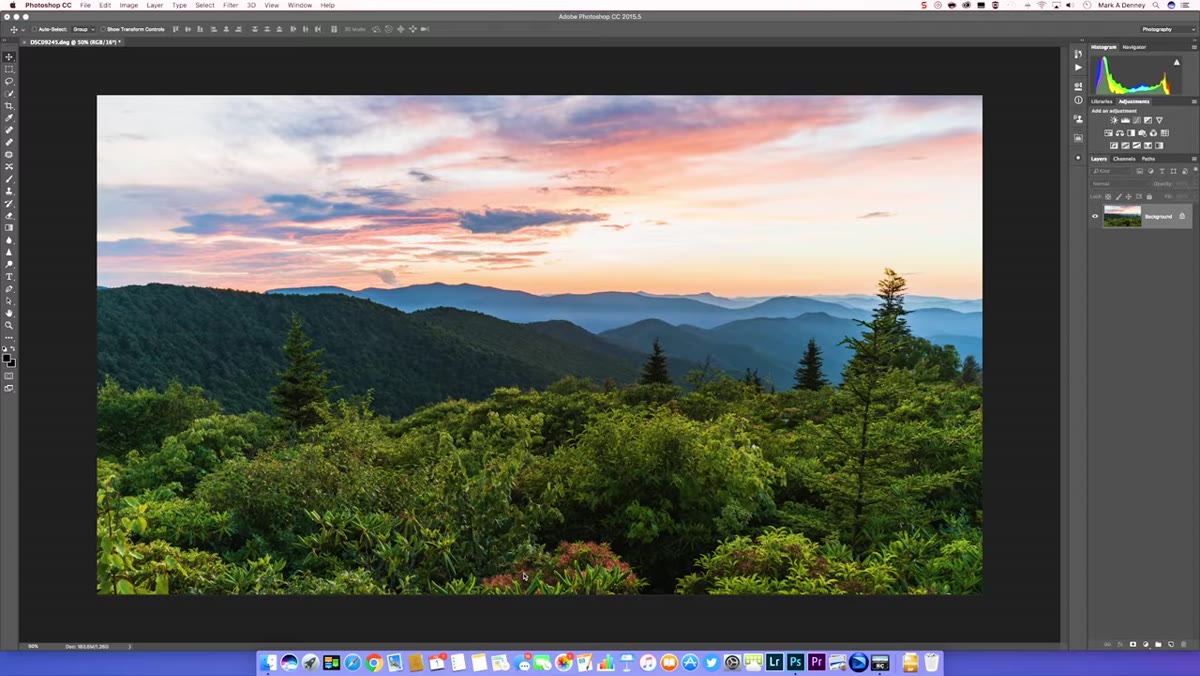 Processed Blue Ridge Mountains image displayed in Photoshop
The Orton effect gets applied at the end of your editing workflow, not the beginning. Open your finished, fully processed image in Photoshop. It should be sharp from front to back, correctly exposed, and color-graded to your satisfaction. Trying to apply this technique midway through an edit creates unpredictable results because the brightness and contrast adjustments in the next steps will interact with whatever tonal changes you make later. Think of what you’re about to do as a final veil laid over a finished painting, not a layer in the middle of a construction project.
Processed Blue Ridge Mountains image displayed in Photoshop
The Orton effect gets applied at the end of your editing workflow, not the beginning. Open your finished, fully processed image in Photoshop. It should be sharp from front to back, correctly exposed, and color-graded to your satisfaction. Trying to apply this technique midway through an edit creates unpredictable results because the brightness and contrast adjustments in the next steps will interact with whatever tonal changes you make later. Think of what you’re about to do as a final veil laid over a finished painting, not a layer in the middle of a construction project.
Step 3: Duplicate the Layer and Name It
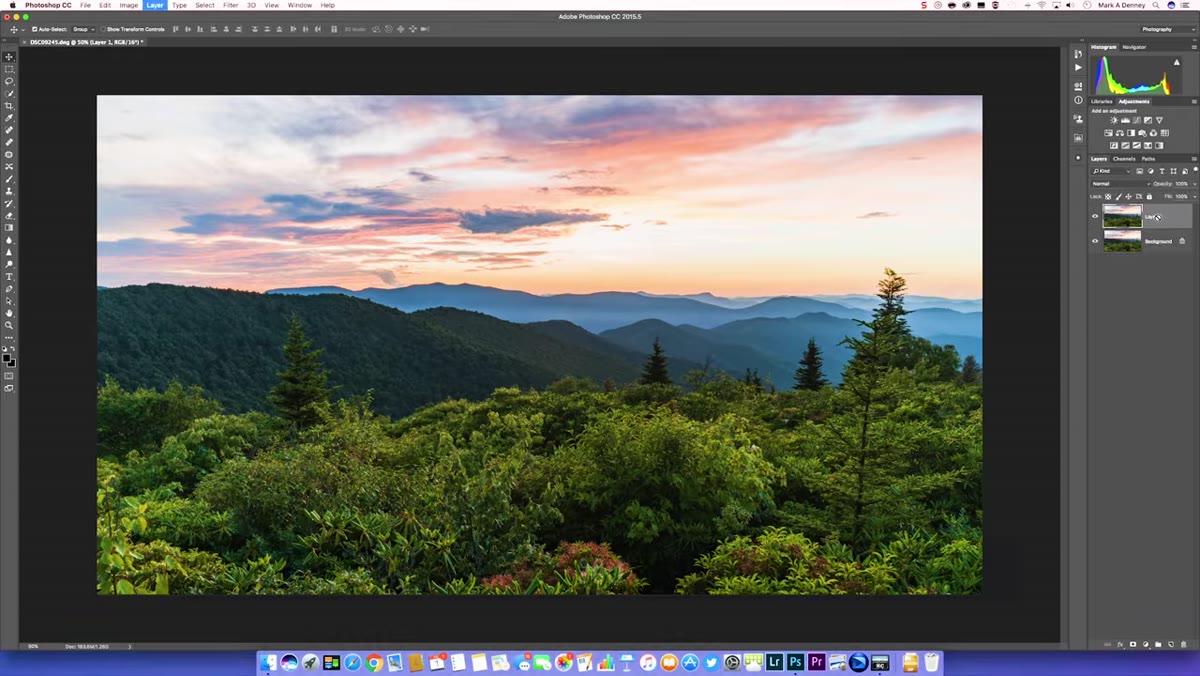 Duplicating the base layer using Command J in Photoshop
With your base layer selected, duplicate it using Command J on Mac or Control J on PC. Once the duplicate appears in your layers panel, double-click its name and rename it something clear. Mark calls his layer “Orton,” which works fine. The label keeps things organized, especially if you’re working in a file with multiple adjustment layers already stacked up. This duplicated layer is what you’ll blur and boost. Your original base layer stays untouched underneath, which means you can always dial back or remove the effect entirely without starting over.
Duplicating the base layer using Command J in Photoshop
With your base layer selected, duplicate it using Command J on Mac or Control J on PC. Once the duplicate appears in your layers panel, double-click its name and rename it something clear. Mark calls his layer “Orton,” which works fine. The label keeps things organized, especially if you’re working in a file with multiple adjustment layers already stacked up. This duplicated layer is what you’ll blur and boost. Your original base layer stays untouched underneath, which means you can always dial back or remove the effect entirely without starting over.
Step 4: Apply a Gaussian Blur
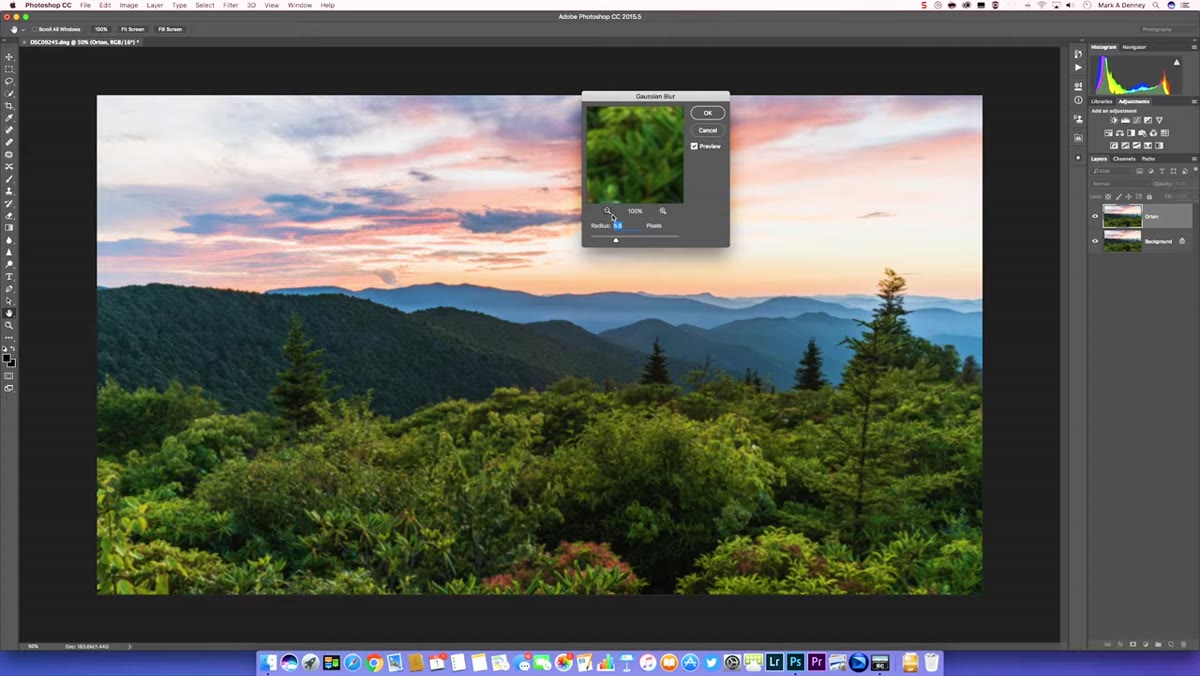 Gaussian Blur dialog box open with radius value being set
With your duplicated Orton layer selected, go to Filter, then Blur, then Gaussian Blur. The radius value you choose here depends on your camera’s sensor resolution. Mark shot his example image on a 42-megapixel Sony body and uses a radius of around 45 pixels. As a general principle, you want the blur amount to roughly correspond to your megapixel count or slightly above it. If you’re working with a 24-megapixel file, start around 25 to 30 pixels. The image should look completely out of focus when you click OK. That’s correct. You’re replicating the second exposure from Orton’s original film technique, and it should look like you’ve gone drastically wrong. You haven’t.
Gaussian Blur dialog box open with radius value being set
With your duplicated Orton layer selected, go to Filter, then Blur, then Gaussian Blur. The radius value you choose here depends on your camera’s sensor resolution. Mark shot his example image on a 42-megapixel Sony body and uses a radius of around 45 pixels. As a general principle, you want the blur amount to roughly correspond to your megapixel count or slightly above it. If you’re working with a 24-megapixel file, start around 25 to 30 pixels. The image should look completely out of focus when you click OK. That’s correct. You’re replicating the second exposure from Orton’s original film technique, and it should look like you’ve gone drastically wrong. You haven’t.
Step 5: Boost Brightness and Contrast
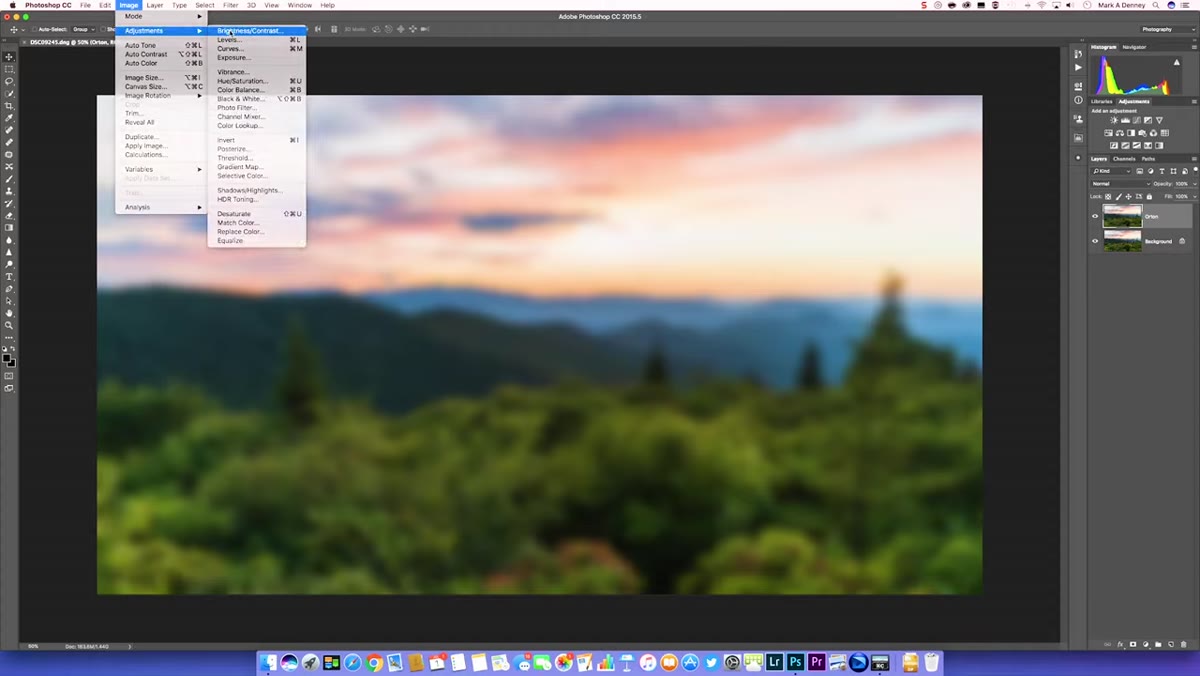 Brightness/Contrast dialog with high contrast value applied to Orton layer
Still on the Orton layer, go to Image, then Adjustments, then Brightness/Contrast. This is where the highlight-to-shadow bleed gets built in. Drag the Contrast slider up hard, somewhere in the range of 70 to 80. This feels aggressive, and on a fully visible layer it looks awful, but it’s doing exactly what it’s supposed to do: pushing the bright tones brighter and the dark tones darker so they crash into each other at the edges. For Brightness, a more modest adjustment in the range of 10 to 25 is usually enough. Mark lands around 23 for his demo image. Click OK. At full opacity the layer looks like an overcooked, blurry mess. That’s fine. The next step is where it all comes together.
Brightness/Contrast dialog with high contrast value applied to Orton layer
Still on the Orton layer, go to Image, then Adjustments, then Brightness/Contrast. This is where the highlight-to-shadow bleed gets built in. Drag the Contrast slider up hard, somewhere in the range of 70 to 80. This feels aggressive, and on a fully visible layer it looks awful, but it’s doing exactly what it’s supposed to do: pushing the bright tones brighter and the dark tones darker so they crash into each other at the edges. For Brightness, a more modest adjustment in the range of 10 to 25 is usually enough. Mark lands around 23 for his demo image. Click OK. At full opacity the layer looks like an overcooked, blurry mess. That’s fine. The next step is where it all comes together.
Step 6: Lower the Opacity Until It Disappears (Almost)
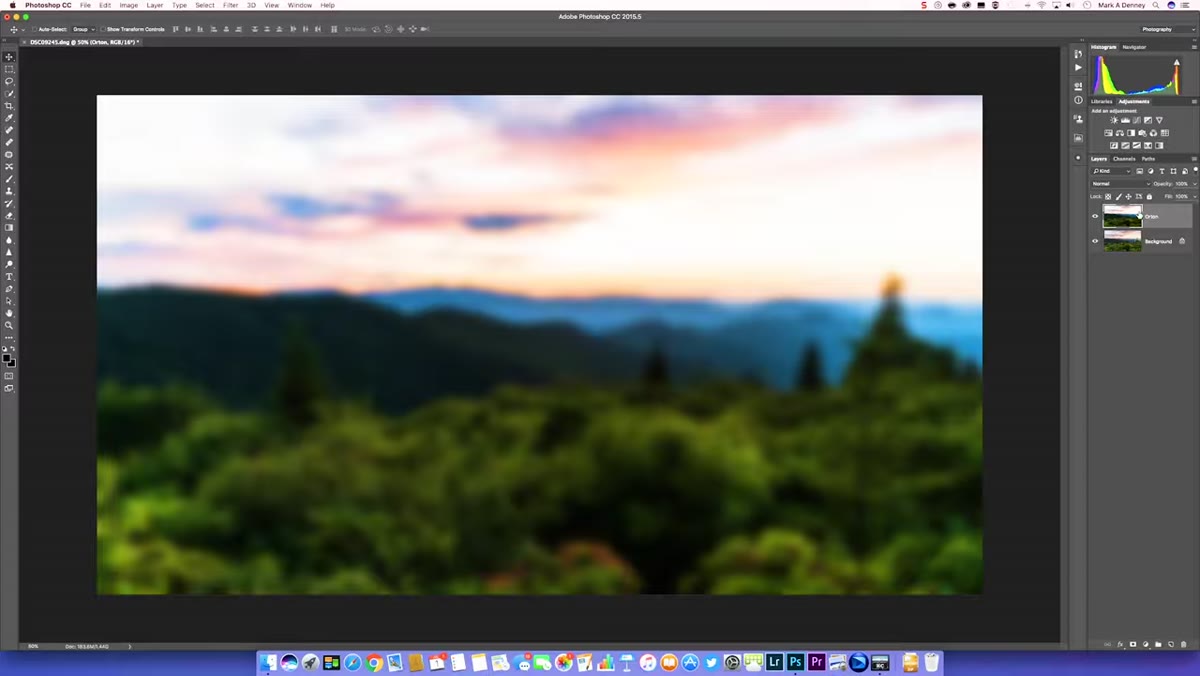 Opacity slider on Orton layer being reduced to a low percentage
Now lower the opacity of your Orton layer. Mark’s working range is typically 10 to 20 percent, and he rarely goes above 20. Start at 15 and toggle the layer on and off while looking at the image. What you’re looking for is a barely perceptible softening of the sharpest transitions in the image, specifically along high-contrast edges like a ridgeline against a bright sky, the edge of a waterfall against dark rock, or a treeline at golden hour. Zoom into one of those edges at 400 or 600 percent and watch the highlight tones from the sky very gently breathe into the shadow tones below. That’s the effect working correctly. If you can see it without zooming in, you’ve probably gone too far.
Opacity slider on Orton layer being reduced to a low percentage
Now lower the opacity of your Orton layer. Mark’s working range is typically 10 to 20 percent, and he rarely goes above 20. Start at 15 and toggle the layer on and off while looking at the image. What you’re looking for is a barely perceptible softening of the sharpest transitions in the image, specifically along high-contrast edges like a ridgeline against a bright sky, the edge of a waterfall against dark rock, or a treeline at golden hour. Zoom into one of those edges at 400 or 600 percent and watch the highlight tones from the sky very gently breathe into the shadow tones below. That’s the effect working correctly. If you can see it without zooming in, you’ve probably gone too far.
My Own Caveat: Paint It, Don’t Pour It
One thing I’ve learned from using this technique across hundreds of prints and workshop images is that it earns its keep more on some images than others. Soft, atmospheric scenes with complex organic texture, forests in fog, tidal flats at dusk, mountain ridges at golden hour, respond beautifully. Hard architectural elements, anything with crisp geometric lines or text, tend to look muddy if the Orton layer is applied globally. In those cases, I’ll add a layer mask to the Orton layer and paint out the areas that need to stay clean. A large soft brush at 20 percent opacity lets me keep the ethereal quality where the light is doing something interesting while preserving crispness elsewhere. It’s one more decision to make in the field, almost. You’re choosing where the dream lives in the frame.
The single most useful thing Mark demonstrates in this tutorial is what happens when you zoom in at 600 percent and toggle the Orton layer on and off. Do that before you decide on your final opacity. Seeing the effect at that scale makes it obvious whether you’re adding atmosphere or adding mud. The difference between a great application of this technique and a heavy-handed one is almost always in that decision, and seeing it up close removes the guesswork.
Watch the full tutorial on YouTube
Comments
Leave a Comment