I’ll be honest with you. For a long time I was dismissive of iPhone landscape photography. Twenty years of hauling full-frame gear up ridgelines in the dark will do that to you. But something shifted when I started really paying attention to what modern RAW processing could pull from these phone sensors. The files are not what they were five years ago, and neither are the editing possibilities sitting inside them. When I came across Watch the full tutorial on YouTube from KelbyOne instructor Ramtin Kazemi, I sat up straight. He was doing things to an iPhone 14 Pro RAW file that I recognized immediately as serious landscape editing technique, not phone photography apology work.
The specific problem this tutorial solves is one every landscape photographer knows: you were in the field at the right moment, you caught something subtle, and now back at the desk you’re staring at a flat, underwhelming file wondering if the light was ever really there at all. Kazemi’s answer is yes, it was there, and the key is learning to see that subtlety before you dismiss the shot. His workflow targets exactly those fragile moments of color and texture that hide inside a properly captured RAW file. This is a step-by-step breakdown of what he does and how to follow along in your own editing session.
Step 1: Recognize What You Have Before You Touch Anything
 Subtle warm light resting on distant mountain and icy foreground
Before opening a single slider, Kazemi makes a point that I think is the most important thing in the entire tutorial: if the light was genuinely there in the scene, even slightly, you can work with it. If it wasn’t, no editing technique in the world rescues it. He’s looking at an image with a faint warm color reflecting across ice and touching the edge of a mountain. Most people would call it a throwaway. He sees raw material. Train yourself to do a slow pass over your image at 100 percent before editing and identify every subtle tonal or color shift that actually exists in the file. That’s your map.
Subtle warm light resting on distant mountain and icy foreground
Before opening a single slider, Kazemi makes a point that I think is the most important thing in the entire tutorial: if the light was genuinely there in the scene, even slightly, you can work with it. If it wasn’t, no editing technique in the world rescues it. He’s looking at an image with a faint warm color reflecting across ice and touching the edge of a mountain. Most people would call it a throwaway. He sees raw material. Train yourself to do a slow pass over your image at 100 percent before editing and identify every subtle tonal or color shift that actually exists in the file. That’s your map.
Step 2: Amplify Existing Color Using the Calibration Panel
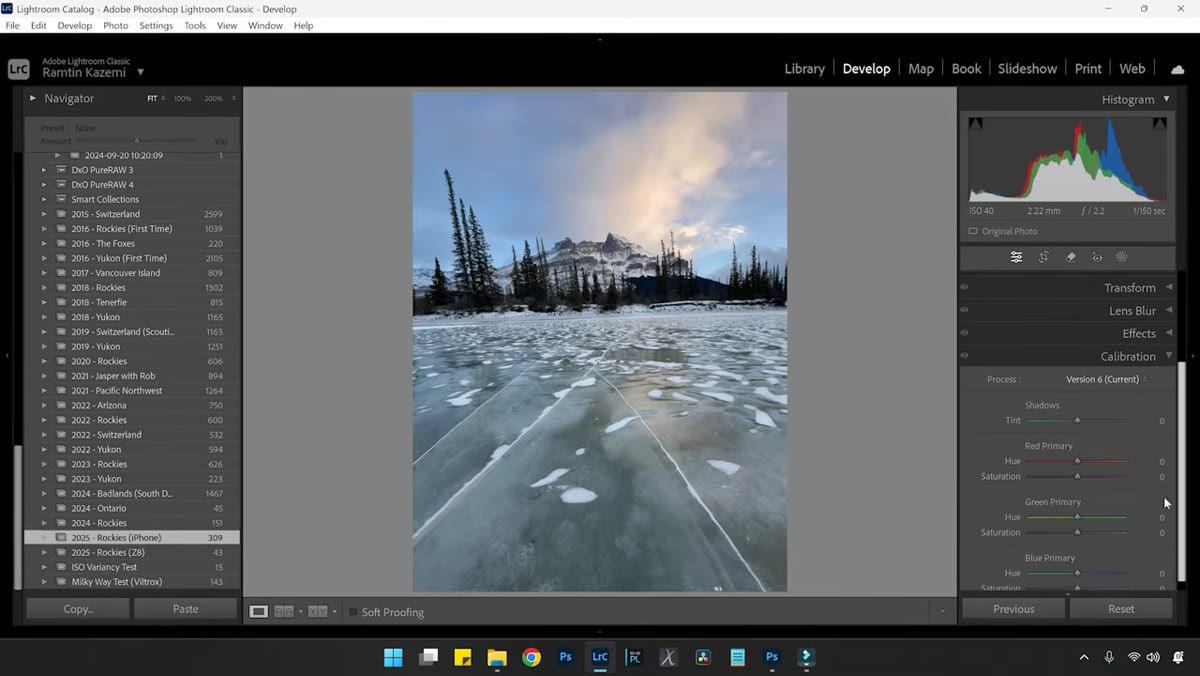 Calibration panel open with Red Primary saturation slider raised
This is where the edit begins, and Kazemi goes somewhere most beginners never look: the Calibration panel, all the way at the bottom of Lightroom’s editing panels. He raises the Red Primary saturation slider to pull out warm tones that the sensor captured but the default rendering buried. The effect is immediately visible as a richer, more present warmth across the scene, particularly in any reds or orange-adjacent tones. This isn’t fabricating color. It’s surfacing what was recorded. From there, move up to the Basic panel and nudge the Temperature slider warmer, then bring the Tint slightly toward magenta. Together these two moves create a cohesive warmth rather than a muddy color cast.
Calibration panel open with Red Primary saturation slider raised
This is where the edit begins, and Kazemi goes somewhere most beginners never look: the Calibration panel, all the way at the bottom of Lightroom’s editing panels. He raises the Red Primary saturation slider to pull out warm tones that the sensor captured but the default rendering buried. The effect is immediately visible as a richer, more present warmth across the scene, particularly in any reds or orange-adjacent tones. This isn’t fabricating color. It’s surfacing what was recorded. From there, move up to the Basic panel and nudge the Temperature slider warmer, then bring the Tint slightly toward magenta. Together these two moves create a cohesive warmth rather than a muddy color cast.
Step 3: Recover Shadow Detail With the Shadows Slider
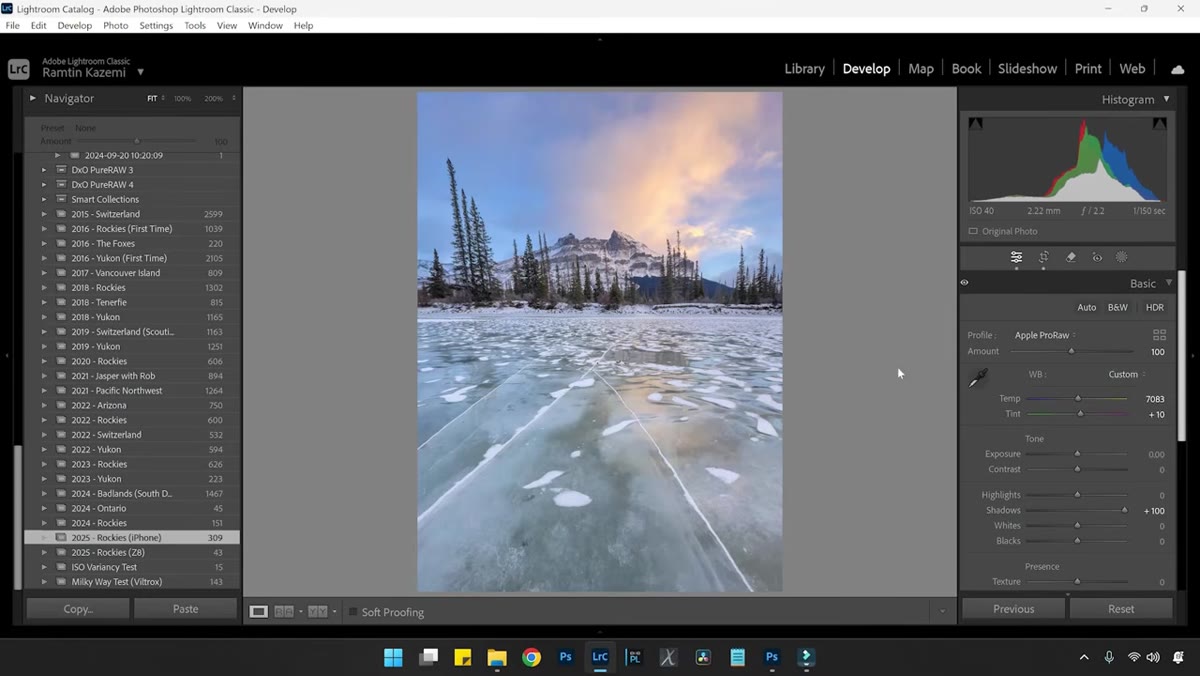 Shadows slider raised, tree detail visible in previously dark foreground
With color established, Kazemi raises the Shadows slider significantly to bring back detail in the darker areas of the frame, specifically the trees in his foreground. This is where shooting RAW earns its keep. A JPEG compresses and discards shadow data at capture. A RAW file holds onto it. On an iPhone 14 Pro or newer, the dynamic range in those shadows is genuinely impressive when you push it. Pull the Shadows up until you can see what’s hiding in the dark areas of your frame. You will almost certainly go further than feels comfortable at first, and that’s fine.
Shadows slider raised, tree detail visible in previously dark foreground
With color established, Kazemi raises the Shadows slider significantly to bring back detail in the darker areas of the frame, specifically the trees in his foreground. This is where shooting RAW earns its keep. A JPEG compresses and discards shadow data at capture. A RAW file holds onto it. On an iPhone 14 Pro or newer, the dynamic range in those shadows is genuinely impressive when you push it. Pull the Shadows up until you can see what’s hiding in the dark areas of your frame. You will almost certainly go further than feels comfortable at first, and that’s fine.
Step 4: Restore Foreground Contrast With a Linear Gradient Mask
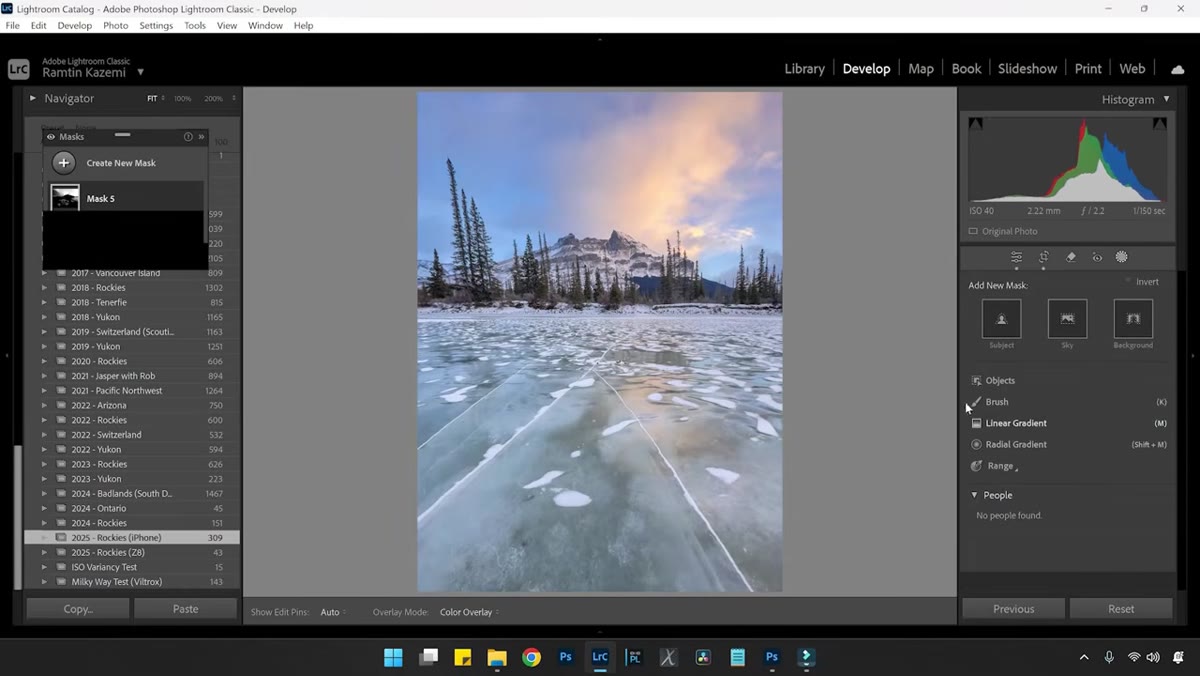 Linear gradient mask applied to foreground, contrast and exposure being adjusted
Raising shadows globally solves one problem and creates another. The foreground flattens out. Kazemi’s solution is clean and precise: add a Linear Gradient mask dragged across the lower portion of the image, covering the foreground. Inside that mask, bring the Contrast slider up and pull the Exposure down slightly. This counteracts the flattening effect of the global shadow lift and gives the foreground its weight back without touching the mid-tones and highlights in the sky or background. Think of it as a targeted tone curve that only applies where you direct it.
Linear gradient mask applied to foreground, contrast and exposure being adjusted
Raising shadows globally solves one problem and creates another. The foreground flattens out. Kazemi’s solution is clean and precise: add a Linear Gradient mask dragged across the lower portion of the image, covering the foreground. Inside that mask, bring the Contrast slider up and pull the Exposure down slightly. This counteracts the flattening effect of the global shadow lift and gives the foreground its weight back without touching the mid-tones and highlights in the sky or background. Think of it as a targeted tone curve that only applies where you direct it.
Step 5: Build Drama With a Radial Gradient Light Source
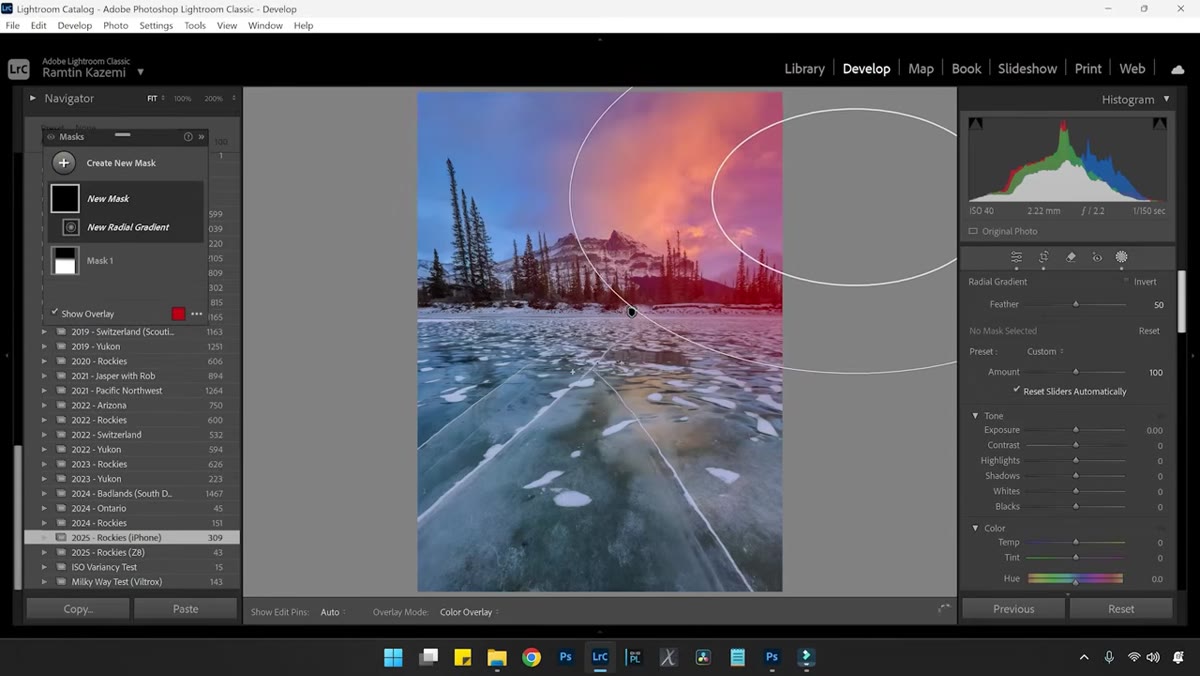 Radial gradient placed toward sun direction, exposure lifted inside gradient
Here’s where the image stops looking edited and starts looking cinematic. Kazemi adds a Radial Gradient positioned on the side of the frame where the light was actually coming from. Inside that gradient, he lifts the Exposure modestly. This mimics the natural behavior of light falling off from a directional source and gives the viewer’s eye a reason to move through the frame. The key word is modestly. You’re suggesting light, not inventing a new sun. A subtle lift here, combined with the color work already done, creates depth that flat global adjustments can never produce.
Radial gradient placed toward sun direction, exposure lifted inside gradient
Here’s where the image stops looking edited and starts looking cinematic. Kazemi adds a Radial Gradient positioned on the side of the frame where the light was actually coming from. Inside that gradient, he lifts the Exposure modestly. This mimics the natural behavior of light falling off from a directional source and gives the viewer’s eye a reason to move through the frame. The key word is modestly. You’re suggesting light, not inventing a new sun. A subtle lift here, combined with the color work already done, creates depth that flat global adjustments can never produce.
Step 6: Boost Local Color Saturation With a Second Radial Gradient
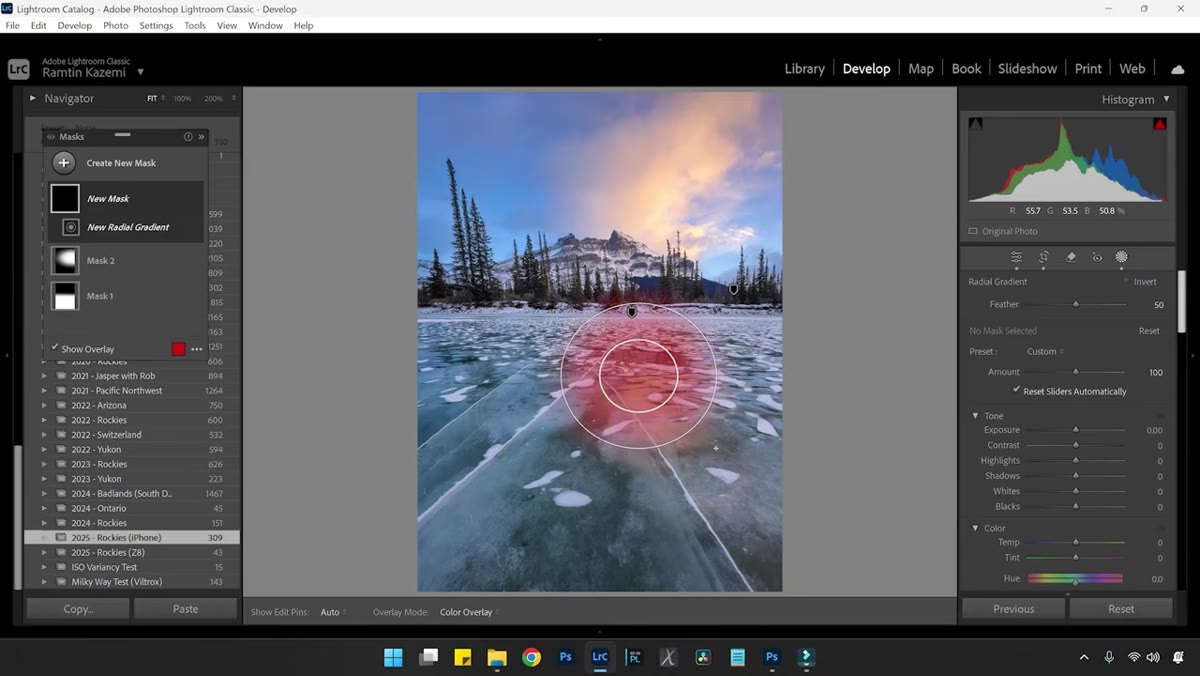 Second radial gradient isolating reflected color on ice, saturation increased
Kazemi adds a second Radial Gradient, this one placed specifically over the area where warm color is reflecting onto the ice. Inside that gradient, he raises Saturation. This is targeted color amplification. Rather than saturating the entire image and blowing out colors elsewhere, he’s putting the richness exactly where the story of the image lives. Place your gradient carefully, feather it generously, and make small moves. A five-to-ten point saturation increase inside a well-placed gradient does more honest work than cranking the global Vibrance slider.
Second radial gradient isolating reflected color on ice, saturation increased
Kazemi adds a second Radial Gradient, this one placed specifically over the area where warm color is reflecting onto the ice. Inside that gradient, he raises Saturation. This is targeted color amplification. Rather than saturating the entire image and blowing out colors elsewhere, he’s putting the richness exactly where the story of the image lives. Place your gradient carefully, feather it generously, and make small moves. A five-to-ten point saturation increase inside a well-placed gradient does more honest work than cranking the global Vibrance slider.
Step 7: Apply Vignetting to Seal the Edges
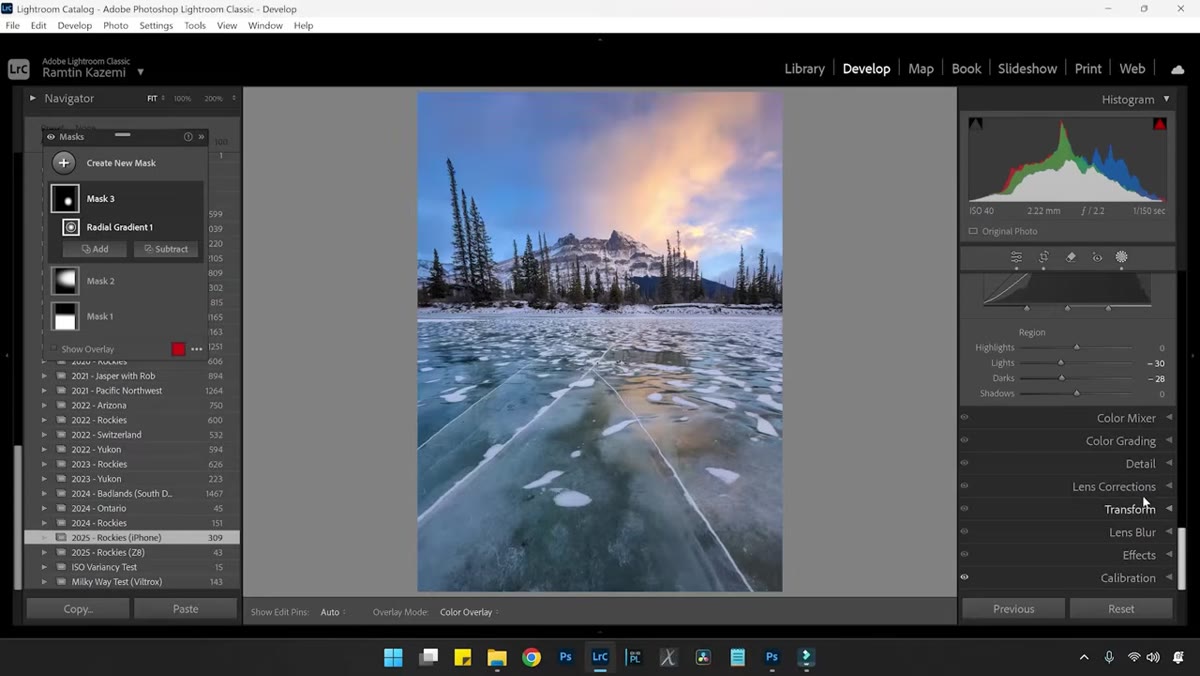 Lens corrections vignette slider being adjusted in effects panel
The last move in the sequence is a classic one: vignetting applied through the Effects panel. Darkening the edges of the frame pulls attention toward the center and keeps the eye from wandering out of the composition. Kazemi uses it here to contain all the tonal and color work he’s done and give the image a finished, deliberate quality. Keep the Amount subtle and midpoint wide so the effect reads as atmosphere rather than a photo filter.
Lens corrections vignette slider being adjusted in effects panel
The last move in the sequence is a classic one: vignetting applied through the Effects panel. Darkening the edges of the frame pulls attention toward the center and keeps the eye from wandering out of the composition. Kazemi uses it here to contain all the tonal and color work he’s done and give the image a finished, deliberate quality. Keep the Amount subtle and midpoint wide so the effect reads as atmosphere rather than a photo filter.
What I’d Add From My Own Experience
Kazemi’s tutorial is built around a winter scene with ice and warm reflected light, which maps well to what I’m often shooting here in central Oregon in the shoulder seasons. One thing I’d emphasize from my own workflow is that this entire process falls apart if you’re not checking your histogram at capture. When I’m in the field at 4am waiting for first light on a snowy slope, I’m watching that histogram to make sure I’m holding detail in my highlights without crushing the shadows. That thin sliver of data in the shadow end is exactly what makes an edit like this possible. Shoot to the right of the histogram, carefully, and you’ll have something to work with when you sit down to edit.
The single most important idea in this tutorial isn’t a slider or a panel. It’s the recognition that subtle light in the field is not a failure of the scene. It’s an invitation. The shot that looks flat on a small phone screen often holds more than you think when it’s opened as a RAW file and worked with patience and intention.
Watch the full tutorial on YouTube and follow along with Kazemi’s original footage. Seeing him move through the edits in real time adds a feel for the pace and scale of the adjustments that a written breakdown can only approximate.
Comments
Leave a Comment